GCP analyze
Enterprise feature: This feature is only available on TruffleHog Enterprise with Analyze. Contact us to learn more.
Prerequisites
To integrate with the GCP Analyze feature, we'll need a service account with the appropriate permissions.
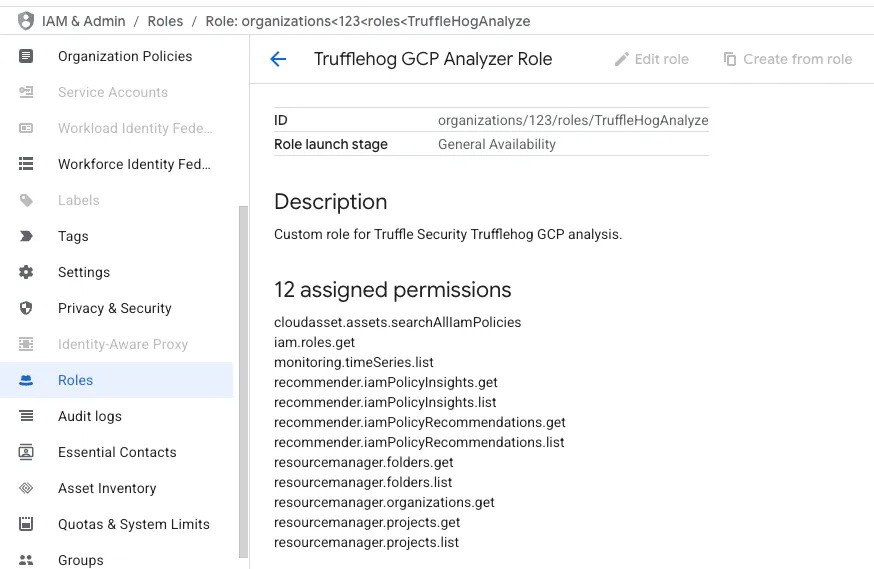
To get started, create a role with the following org-wide permissions. https://console.cloud.google.com/iam-admin/role
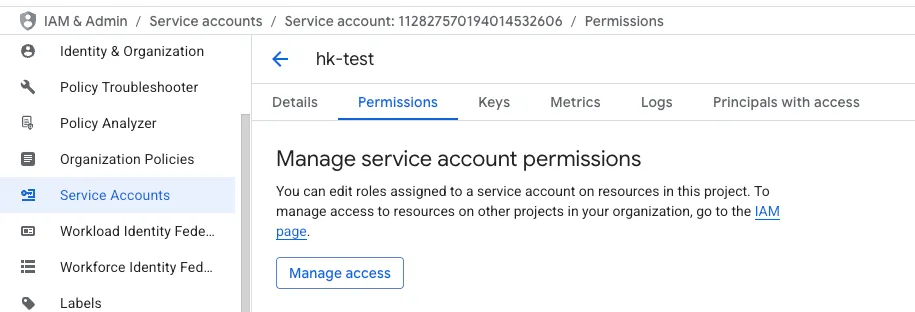
Attach the created role to your desired service account. This is using the "Manage access" button under the "Permissions" tab for the service account.
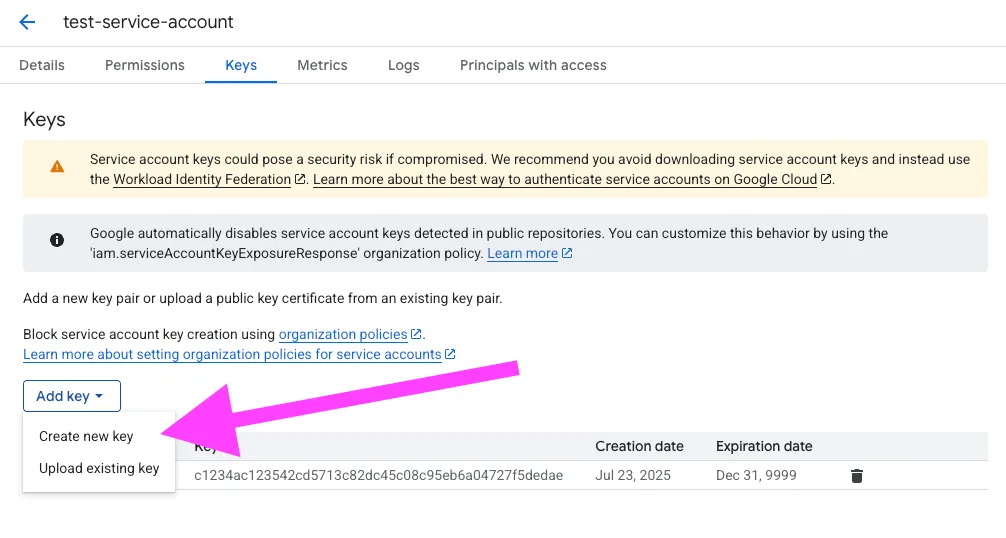
Under the "Keys" tab, create a new key with JSON formatting.
Cloud integration setup
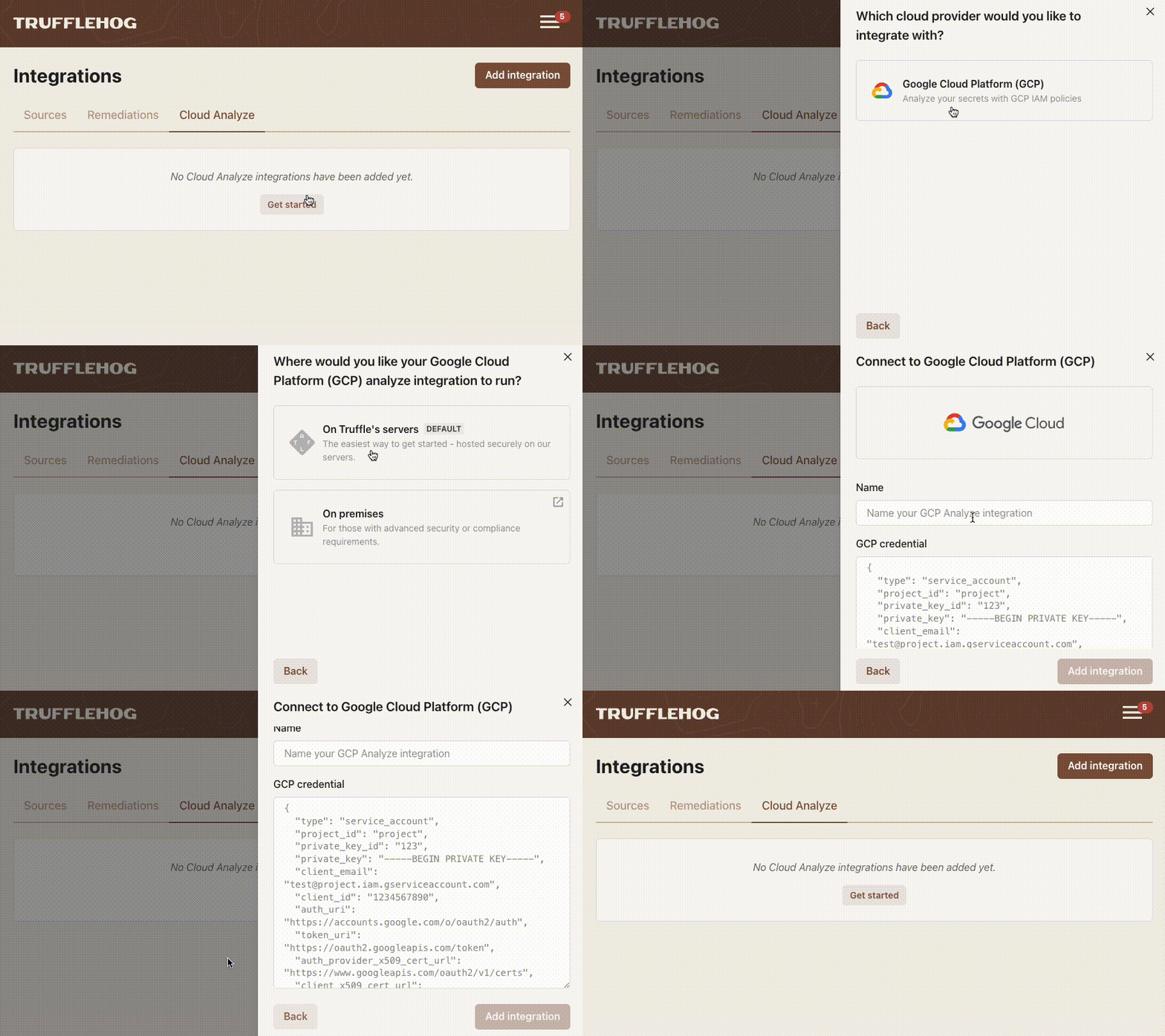
In your TruffleHog instance, create a Cloud Analyze integration for GCP. Paste in the JSON key you created earlier.
The next time a TruffleHog scanner detects a live GCP credential, it will automatically attempt to analyze the secret.
If you prefer not to set up a TruffleHog cloud integration, you can run TruffleHog locally using an on-prem scanner and configure it to use your local machine's GCP credentials.
On-prem scanner setup (alternative)
GCP credentials can be analyzed using a hosted scanner or an on-prem scanner. When using an on-prem scanner, ADC (application default credential) can be used instead of using a service account credential configured through the Integrations tab. If this feature is enabled in a scanner configuration, the scanner will only using the ADC set up in the scanner environment.
Note that the previous flag analyzeUsingDefaultCredentials is now deprecated. If you are using this flag, please update your config to useanalyzeGcpUsingDefaultCredentials.
Example configuration enabling ADC using analyzeGcpUsingDefaultCredentials:
trufflehogAddress: your.truffle.address:8443
trufflehogScannerGroup: scannerGroup
trufflehogScannerToken: thog-agent-64869d9e735b33f1f8586a09be50d7ca
logJson: true
logLevel: info
analyzeGcpUsingDefaultCredentials: true
notifiers:
- name: stdout
  sendUnverified: true
  type: NOTIFIER_TYPE_STDOUT
Permissions viewer
Learn more about a credential's resource-permission hierarchy and associated role-bindings with our permission viewer.
The TruffleHog permission viewer is based on the GCP resource hierarchy which contains the organization (root), folders, projects, and then actual service resources.
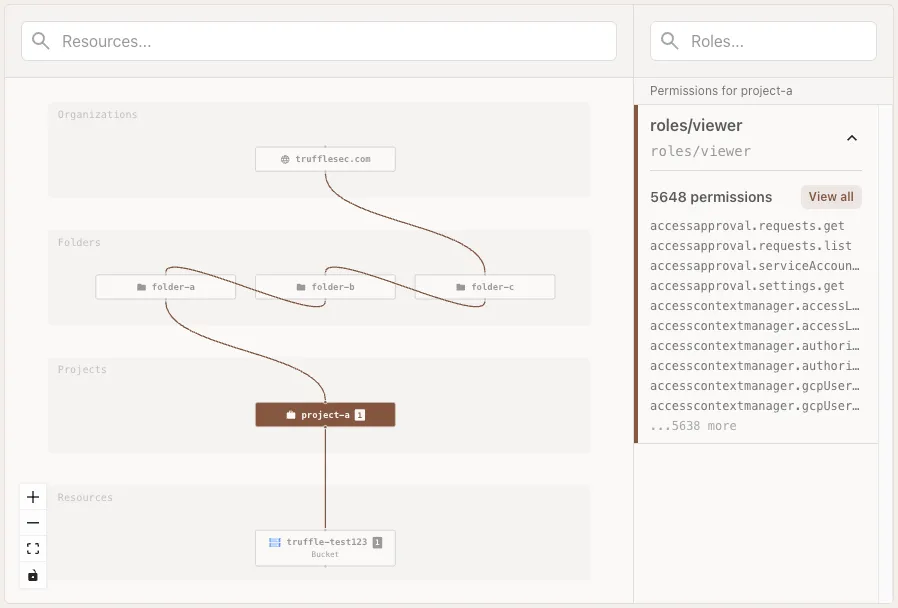
Items with a badge in this resource tree indicate direct role-bindings in which the service account was assigned. If the node is selected, you can then drill down into the assigned roles and permissions.
Table view & role analysis
The table contains all direct role-bindings in which this GCP key has access to. Clicking on a role-binding will provide a detailed view on the selected role-binding.
Metadata search
Search through a key's resources, roles, and permissions to discover what sort of access the GCP key has.
Key rotation
While there is a GCP key rotation tutorial on howtorotate.com, integrating with GCP allows us to provide a more guided experience to rotate your GCP secret.
Clicking the "Help me rotate" button on the secret will pull out a guided tutorial on how to rotate your GCP secret safely. This includes the following:
- Links to project logs in which the GCP secret has role-bindings to
- The key identifier for the particular leaked secret
- Links to the Google Cloud console to revoke and generate a new secret
Credential insights & recommendations
On a given GCP secret, we'll provide insights and recommendations to highlight usage and least-privilege access patterns that may be of note in your remediation process.
Limitations
- Integrating GCP Analyze on the web dashboard is limited to a single GCP organization.
- Currently does not handle conditional IAM policies