AWS analyze
Edition: Enterprise only
AWS Analyze shows the IAM identity behind a discovered AWS key, the identity-based permissions attached to it, and related revocation metadata, so you can triage the finding.
Overview
Leverage AWS Analyze when you want to enrich AWS secret detections with IAM context.
TruffleHog uses a privileged AWS identity you provide to run read-only permission checks against the detected secret. After the integration is healthy, AWS secrets detected from that point are analyzed with those credentials.
You must create that privileged identity in AWS before you can add the integration. The calls are read-only.
How it works
- A privileged AWS identity does the analysis. You give TruffleHog credentials for an IAM user, or for an IAM role assumed through IAM Roles Anywhere. TruffleHog uses that identity to make read-only IAM and STS calls for the principal behind a discovered key.
- Setup is validated on save. Adding the integration runs a credential self-check. Healthy means the required permissions are in place. Unhealthy means the self-check failed. Opening the status shows what went wrong.
- Analysis runs on newly detected AWS secrets. A scanner that finds a live AWS credential after the integration is healthy uses those credentials to analyze it.
- Two authentication methods. Access keys on an IAM user, or a client certificate via IAM Roles Anywhere. With access keys, you can optionally assume a role for the analysis.
Prerequisites
Requirement | Detail |
|---|---|
AWS account | Permission to create an IAM user, or to create a Private CA, IAM role, trust anchor, and profile for Roles Anywhere |
TruffleHog Analyze | AWS Analyze is a Cloud Analyze integration in TruffleHog Enterprise |
Privileged identity | An IAM user or Roles Anywhere role with the permissions below |
Attach a customer-managed policy with these permissions. If you set a role ARN on the access-key integration, the identity also needs sts:AssumeRole on arn:aws:iam::*:role/*.
Permission | Resource |
|---|---|
sts:GetCallerIdentity | * |
iam:GetUser | arn:aws:iam::*:user/* |
iam:ListGroupsForUser | arn:aws:iam::*:user/* |
iam:ListAttachedUserPolicies | arn:aws:iam::*:user/* |
iam:ListUserPolicies | arn:aws:iam::*:user/* |
iam:GetUserPolicy | arn:aws:iam::*:user/* |
iam:ListAttachedGroupPolicies | arn:aws:iam::*:group/* |
iam:ListGroupPolicies | arn:aws:iam::*:group/* |
iam:GetGroupPolicy | arn:aws:iam::*:group/* |
iam:ListRoles | * |
iam:ListAttachedRolePolicies | arn:aws:iam::*:role/* |
iam:ListRolePolicies | arn:aws:iam::*:role/* |
iam:GetRolePolicy | arn:aws:iam::*:role/* |
iam:GetPolicy | arn:aws:iam::*:policy/*, arn:aws:iam::aws:policy/* |
iam:GetPolicyVersion | arn:aws:iam::*:policy/*, arn:aws:iam::aws:policy/* |
iam:ListAccountAliases | * |
iam:GetAccessKeyLastUsed | arn:aws:iam::*:user/* |
Create an IAM user and access keys
Use this method unless your organization requires short-lived credentials.
- In the AWS console, go to IAM, then Users.
- Click Create user and enter a name, such as trufflehog-aws-analyze.
- Attach a customer-managed policy with the permissions in Prerequisites. Save the user.
- On the user's detail view, click Create access key.
- Select Third-party service, then click Next.
- Enter a description and click Create access key.
- Copy the access key ID and the secret access key.
AWS does not show the secret access key again. Store it before you leave the wizard.
You now have an access key ID and secret access key to paste into TruffleHog Enterprise.
Set up IAM Roles Anywhere
Use this method when you cannot issue long-lived access keys. TruffleHog presents a client certificate to IAM Roles Anywhere and receives temporary credentials.
An AWS administrator creates the infrastructure once per account. Repeat the certificate steps when you rotate or add a credential.
Create the AWS infrastructure
Private CA. TruffleHog authenticates through AWS Private CA. If you already have an ACM PCA-registered CA, skip to the IAM role. Creating a root CA bills as a Private CA. A subordinate CA under an existing organization CA avoids a second monthly charge.
Activate a new root CA by self-signing it:
IAM role. Create a role that Roles Anywhere can assume, and attach the policy from Prerequisites.
Trust policy (trust-policy.json):
Trust anchor. This tells Roles Anywhere which CA to trust.
Save the trustAnchorArn from the output.
Profile. This links the trust anchor to the IAM role. The trust anchor and profile must be in the same region.
Save the profileArn from the output.
You should now have three ARNs: the trust anchor, the profile, and arn:aws:iam::<YOUR_ACCOUNT_ID>:role/TruffleHogAnalyze.
Issue a client certificate
Repeat these steps to rotate a credential or create another one.
- Generate a key and a certificate signing request:
The Common Name is for identification. Use any descriptive value.
- Issue an end-entity certificate from your Private CA. Set --validity to a duration your organization accepts.
- Save the CertificateArn from the output, then retrieve the certificate:
You now have client-cert.pem, client-key.pem, and the three ARNs to paste into TruffleHog Enterprise.
Add an AWS Analyze integration
- Go to Integrations
- Open the Cloud Analyze tab.
- Click Add integration, then Cloud Analyze, then Amazon Web Services (AWS).
- Select a Hosted or Self-hosted scanner.
Hosted scanner configuration
Access keys
- Name the integration.
- Enter the access key ID and secret access key from the IAM user.
- Optionally enter a role ARN to assume for analysis, and an AWS region.
- Click Add integration.
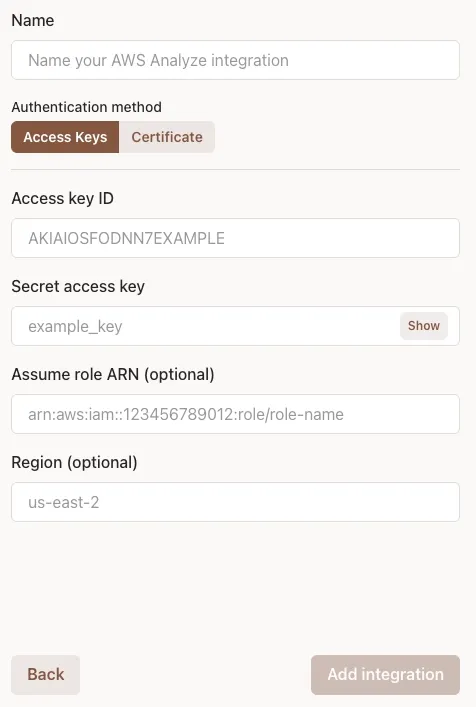
The integration runs a credential self-check. It is Healthy when the required permissions are in place. AWS secrets detected from this point are analyzed with these credentials.
If you set a role ARN, the IAM user also needs sts:AssumeRole on arn:aws:iam::*:role/*.
Certificate
Every field is required.
- Name the integration.
- Paste the trust anchor ARN, profile ARN, role ARN, client certificate, and private key from Set up IAM Roles Anywhere.
- Click Add integration.
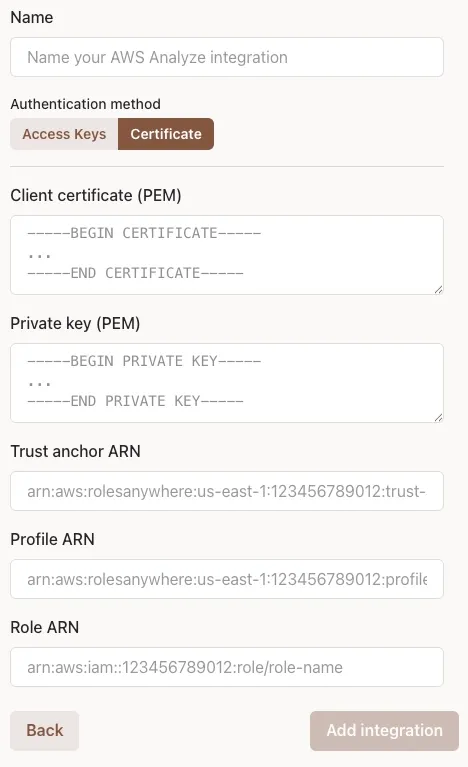
The integration runs a credential self-check. It is Healthy when the required permissions are in place. AWS secrets detected from this point are analyzed with these credentials.
Self-hosted scanner configuration
- In the scanner config yaml, set analyze_aws_using_default_credentials: true
- set AWS_ACCESS_KEY_ID and AWS_SECRET_ACCESS_KEY in the scanner process environment
- or, set AWS_AUTH_CERT to point to a complete cert file
- optional: AWS_ASSUME_ROLE_ARN for the assumed role
Notes
- Analysis applies to AWS secrets detected after the integration is healthy.
Interpret AWS Analyze results
AWS Analyze organizes results around the identity behind the key and the roles that identity may reach.
- Identity shows the AWS account, principal ARN, identity type, groups, tags, creation date, and permissions boundary when available.
- All permissions combines the permission rows found during analysis. Select it or an individual role to populate the permissions table. “No permissions found” before making a selection does not mean the key has no permissions.
- Direct roles can be assumed directly by the discovered identity.
- Assumable roles are reachable through one additional role assumption. These paths can expand the key’s access beyond its original identity policies.
Each permission row shows:
- Effect: Whether the source statement declares Allow or Deny.
- Action: The AWS API operation covered by the statement.
- Resource: The ARN or resource pattern to which it applies. * indicates broad scope.
- Policy: The policy that produced the row.
- Limits: Conditions that may restrict when the statement applies.
Policy labels describe the source of a policy:
- managed: An AWS-managed or customer-managed policy attached to the identity or role.
- inline: A policy embedded directly in an IAM user or role.
- group_managed / group_inline: A policy inherited through an IAM group.
- trust: A role trust policy. Trust policies determine who may assume a role. They do not grant the permissions available after assumption.
Troubleshooting
Condition | Cause | Solution |
|---|---|---|
Integration marked Unhealthy | The credential self-check failed | Open the status for the failure. Edit the credential if a value you entered is wrong. Click Refresh if the failure was on AWS's side, then try again. |
Self-check fails after you set a role ARN | The IAM user cannot assume that role | Grant sts:AssumeRole on the role, then edit the integration or click Refresh. |
Secret access key is no longer in the AWS console | AWS shows the secret access key only at creation | Create a new access key on the IAM user and edit the integration. |