User Enablement Guide
14 min
Documentation
- The full list of detectors and analyzers are available here:
- To access the TruffleHog API documentation do the following:
- Log into your TruffleHog instance
- In the left navigation bar, click on “Documentation”
- Click on “API Docs”
- If you have questions about the terminology used throughout this document, please reference this page:
- You can export your secret findings in a CSV file and this guide explains each column name.
Adding Users
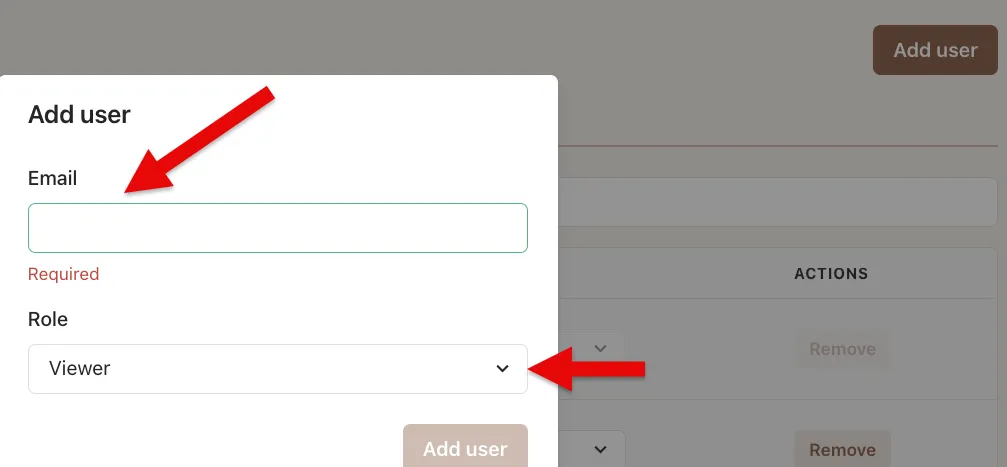
- To add a user, within TruffleHog click on “Settings”, then click on “Users”. Enter the user's email address, select their role and then click “Add User”.
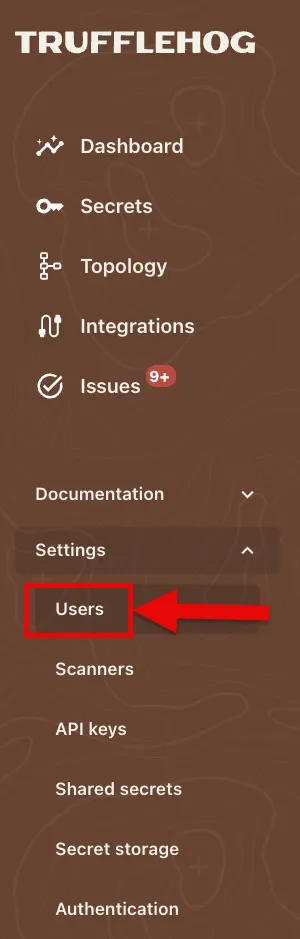
- Enter email address and select role.
Deleting Users
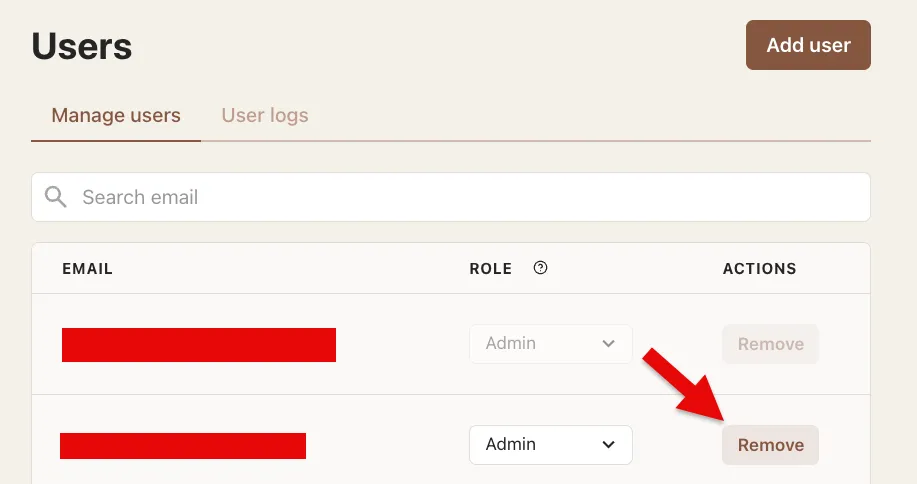
- To delete a user, within TruffleHog click on “Settings”, then click on “Users”. Find the user's email address and click "Remove" on the right side of the user record.
User Roles Explained
- Admin - Admins have full editor permissions as well as managing users and authentication.
- Editor - People with editor access have read and write access to TruffleHog. They can set up integrations, adjust secret triage states, and most other changes. Editors cannot manage users or authentication.
- Viewer - People with viewer access have read-only access to TruffleHog. They can see metrics, explore discovered secrets, and view any other data available. Viewers cannot make changes.
- Share Viewer - People with share viewer access have read-only access to the TruffleHog secrets you share with them directly like this:
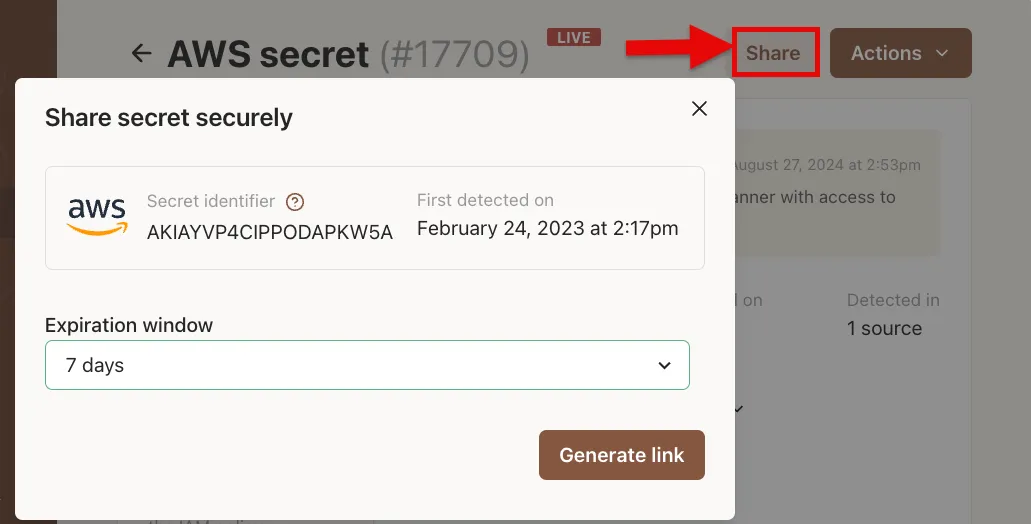
** For more information about setting up"Dynamic Role-Based Access" please follow this document:
Setting up Single Sign-On (SSO)
- To setup SSO, please follow the guide available here:
TruffleHog API
- Accessing Documentation
- To access the TruffleHog API documentation do the following:
- Log into your TruffleHog instance
- In the left navigation bar, click on “Documentation”
- Click on “API Docs”
- Creating an API Key
- To create a TruffleHog API key, do the following:
- Log into your TruffleHog instance
- In the left navigation bar, click on “Settings”
- Click on “API Keys”
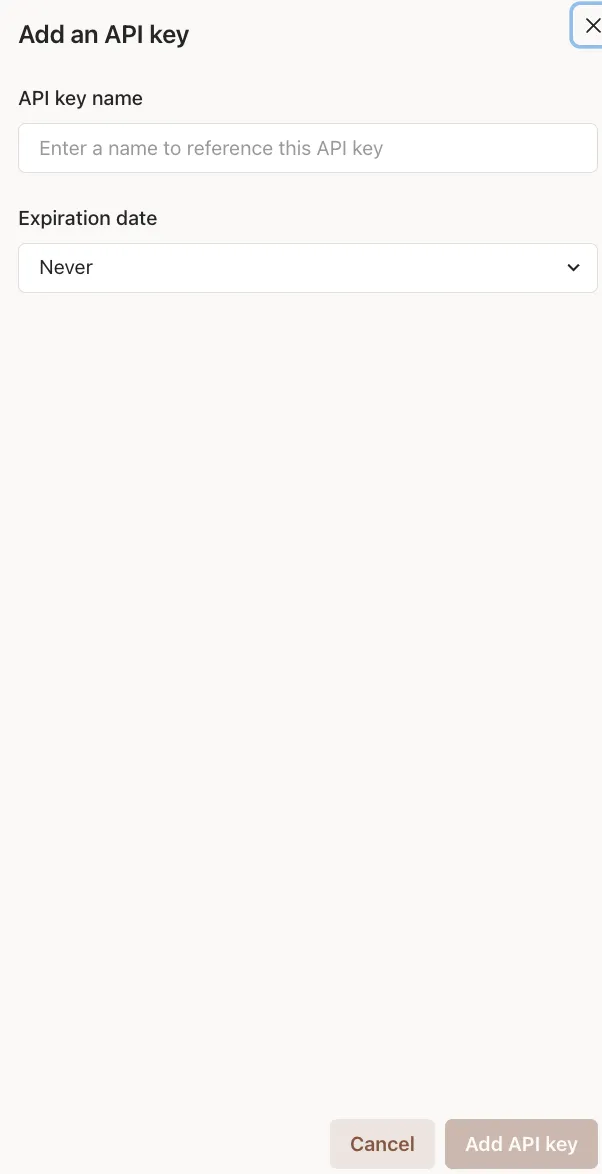
- Click on "Generate API Key"
- Name your key and select an expiration date (Never, 1 day, 7 days, 3 months, 1 year) and click "Add API Key"
- Copy the "API Key ID" and "API Key Secret" and store it in a secure place ("Download as JSON" or copy via clipboard icon)
- Click "Done"
Dashboard
- Insights
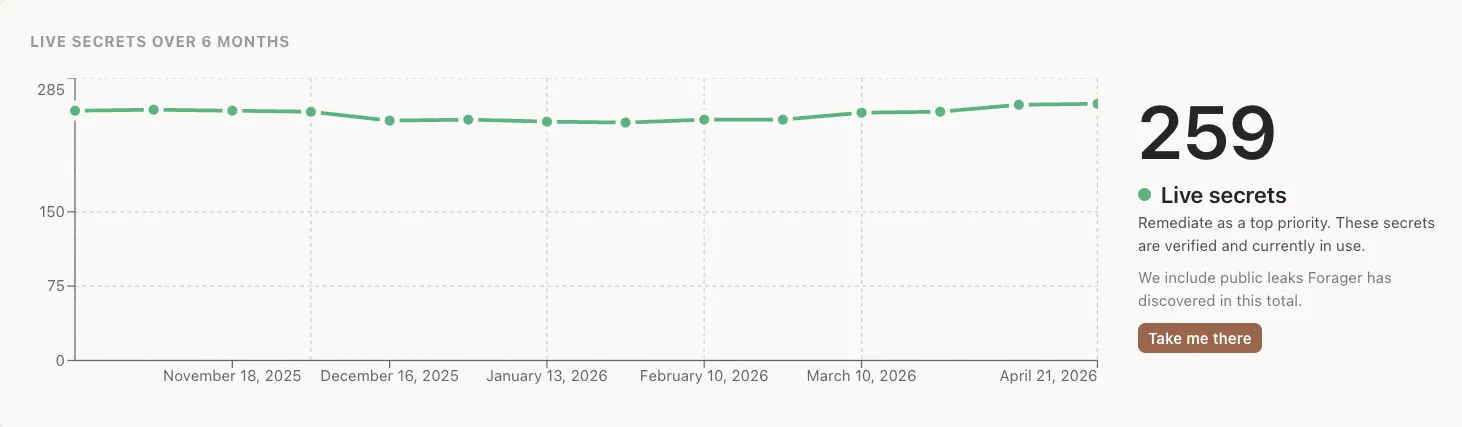
- Live Secrets - this graph shows a current total and view over the last 6 months of all live secrets.
- Live means that we found the secret in one of your environments and were able to successfully make a safe, read-only API call to the service provider to test if the credential is valid without modifying any resources.
- (Optional) More information about HOW TruffleHog verifies secrets is available here:
- Clicking on "Take me there" will take you to the "Secrets" page pre-filtered to show only Live secrets
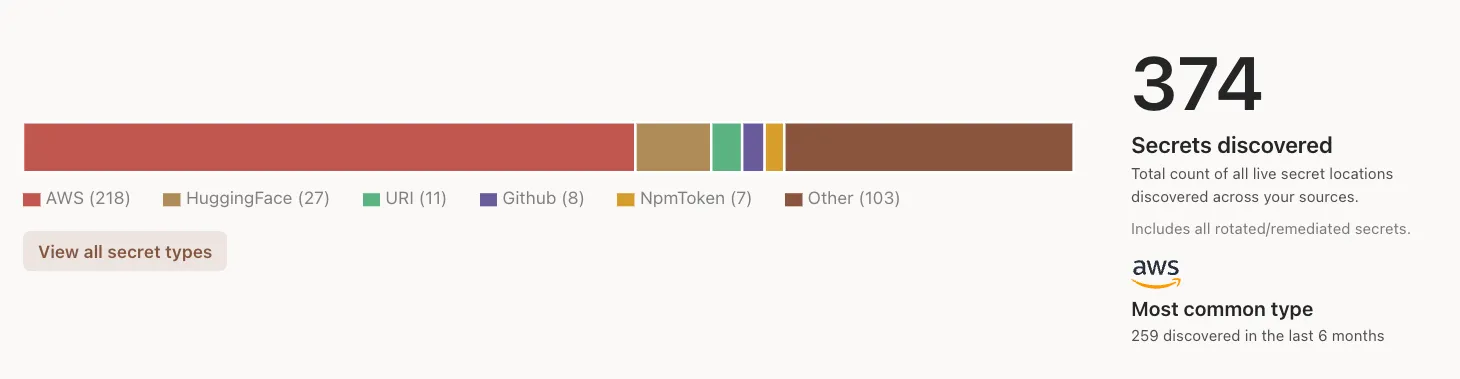
- Secrets Discovered - this graph shows a total count of all live secret locations discovered across your sources.
- Users can click on any bar in the graph and it will take them to the "Secrets" page pre-filtered to show only Live secrets for that Secret type.
- Example - Clicking on AWS will take you to a view of all live AWS secrets.
- Clicking on "View all secret types" will take you to the "Secrets" page pre-filtered to show only Live secrets
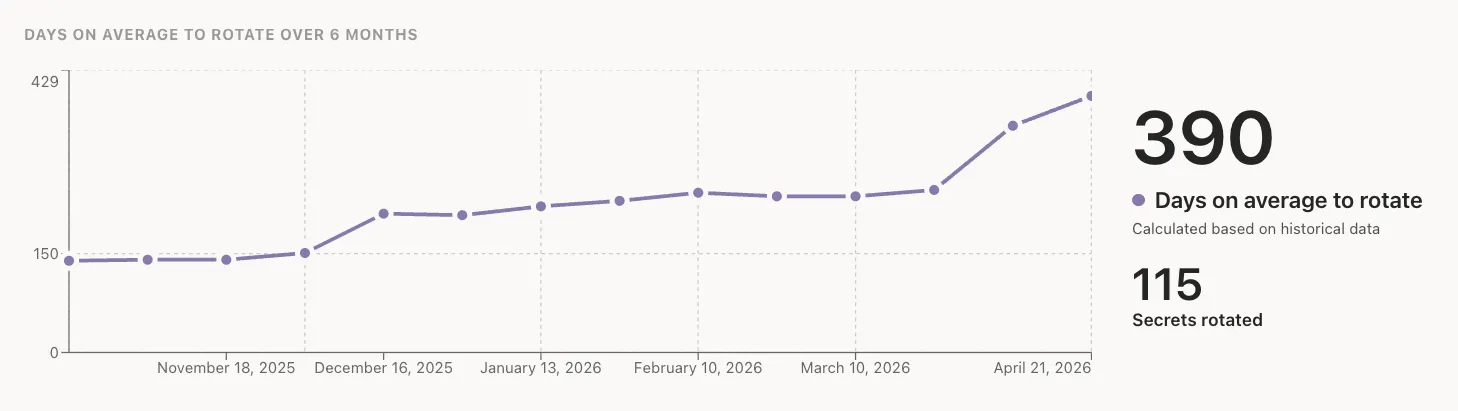
- Days on average to rotate - this graph shows the days on average that it takes your team to rotate the secrets that TruffleHog finds. The graph shows the last 6 months with each dot representing a bi-weekly data point.
- Save as PDF - Users can also save a pdf version of this page by clicking "Save as PDF" in the top-right corner.
- Active Scans
- The "Active Scans" view shows any scans that are currently running.
Secrets Page
- Clicking "Secrets" in the left navigation panel will take you to the Secrets page where you can initially filter Secrets based on the following:
- Secret state
- Triage state
- Definitions of the secret state and triage state options are available here:
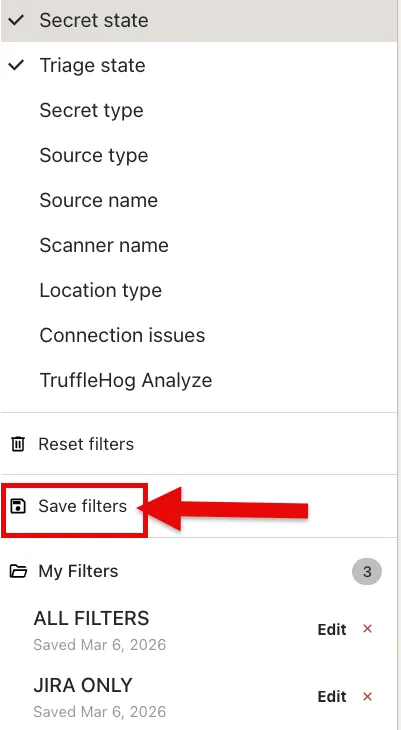
- Clicking "Filters" in the top-right corner displays even more options that you can filter on.
- You can save your filters.
- Additional filters include:
- Secret type
- The kind of secret that was found.
- Ex. AWS Access Key, MongoDB credential, HuggingFace API Key, GitHub PAT
- Source type
- Where / which system the secret was found in
- Ex. GitHub Repository, Slack channel, Confluence Page
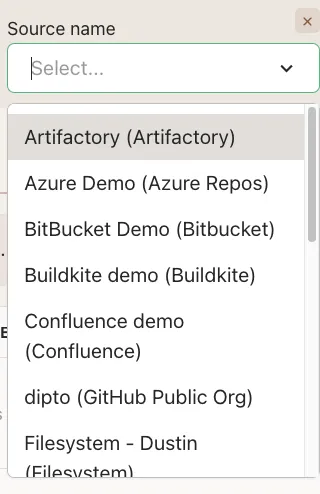
- Source name
- The name / identifier of the source / integration you created. This is done on the "Integrations" page and more information can be found later in this document
- Examples of different source names can be found below. Notice that the tool / system is provided in parentheses for each item.
- Scanner name
- The "Scanner name" filter lets you filter based on your Hosted scanners (i.e. Managed Scanners hosted by Truffle Security Co.) and your self-hosted scanners.
- You can view the full list of these scanners by clicking "Settings" then "Scanners" in the left-side navigation menu.
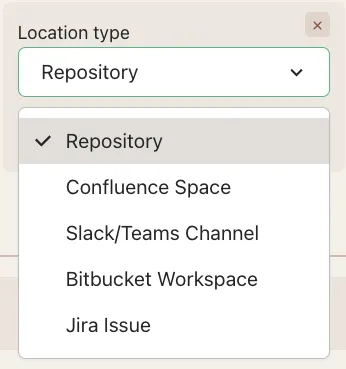
- Location type
- The "Location type" filter lets you filter based on WHERE a secret was found.
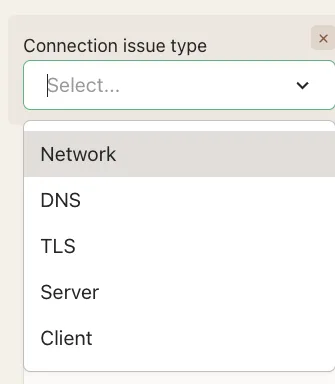
Connection issues
- The "Connection issue" filter lets you filter based on the type of connection issue we encountered when we tried to verify the found secret(s)
- TruffleHog Analyze
- An overview of Analyze can be found here, and for additional context, please checkout Analyze Secrets.
- 60+ Analyzers available.
- The "TruffleHog Analyze" filter lets you filter by the type of Analyzer (ex. Square, OpenAI, Mailchimp) and the permissions (ex. "read", "write", etc.) associated with that Analyzer.
- Discovered Secrets
- The "Discovered Secrets" tab shows a list / table of all secrets that match the current filter set.
- The "Secret Locator" and "Location" table headers can be clicked to sort the table in alphabetical order
- The "Found On" and "Last Seen" table headers can be clicked to sort the table in order by timestamp.
- Additional actions can be found for each item in the "Actions" column
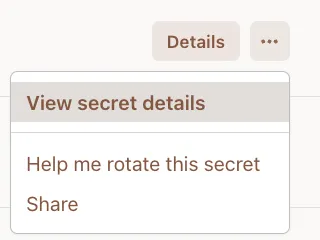
- Each individual secret can be clicked on to navigate to the "Secret Details" view.
Analyze - How to Filter all Live Secrets
- When you open secrets on the left, you will not see Truffle Analyze Search box to the right of Triage State.
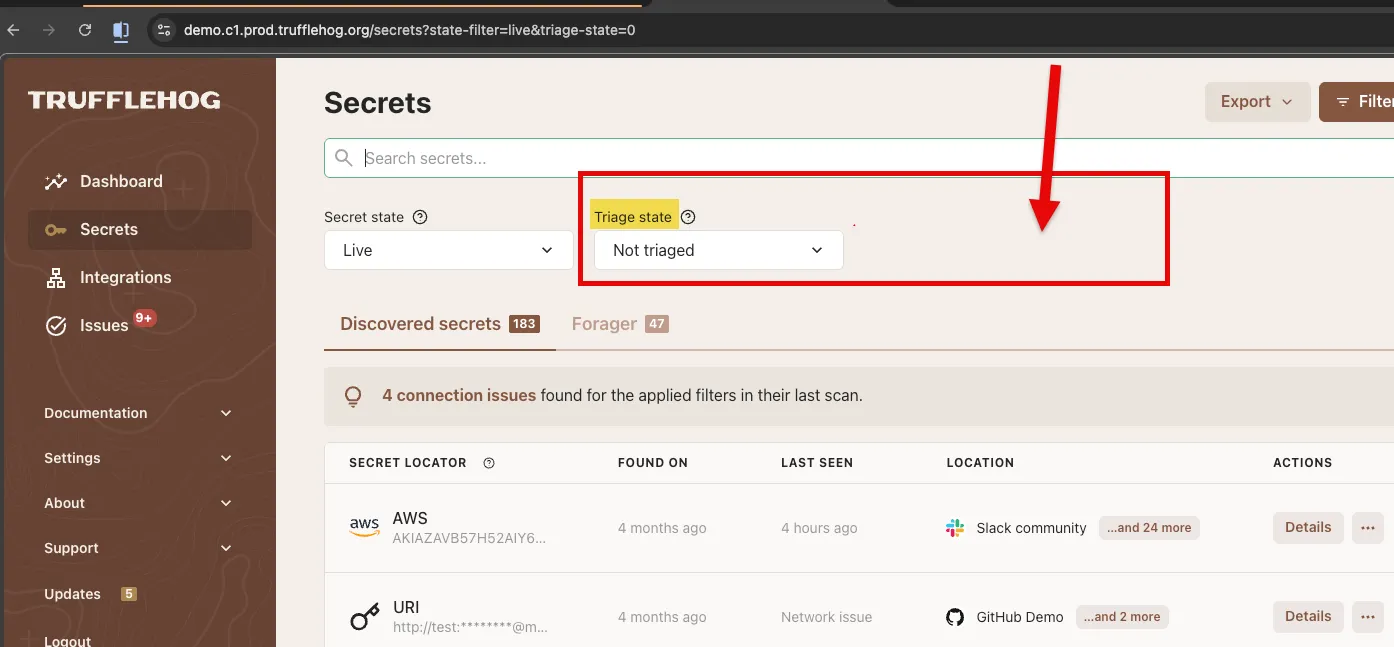
- To get the Analyze search box, go to one of your secrets that has been identified by Analyze, like this Slack token.
- Left click any permission and click Add to Filter.
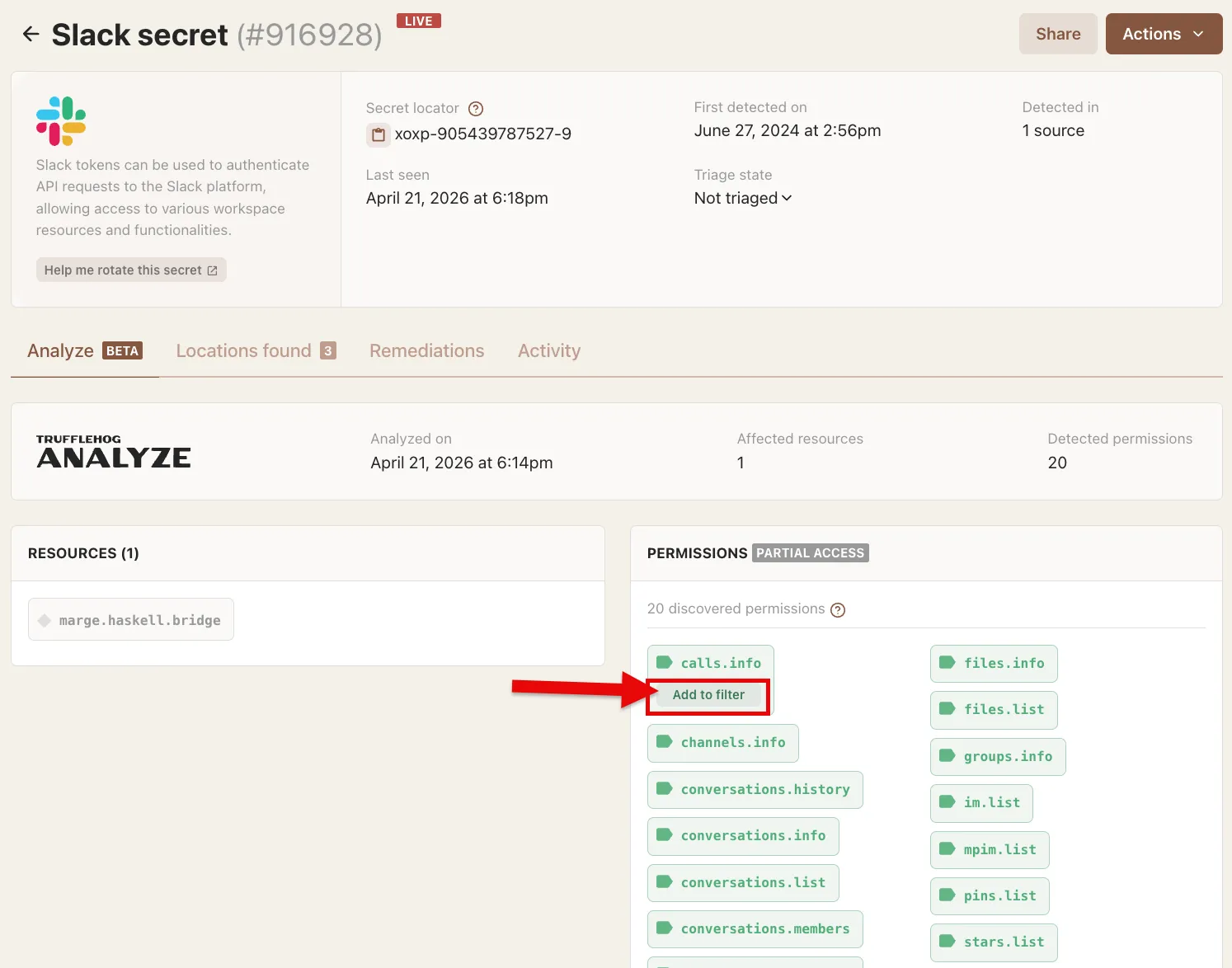
- The bottom notification displays.
- Click Filter by 1 Permission.
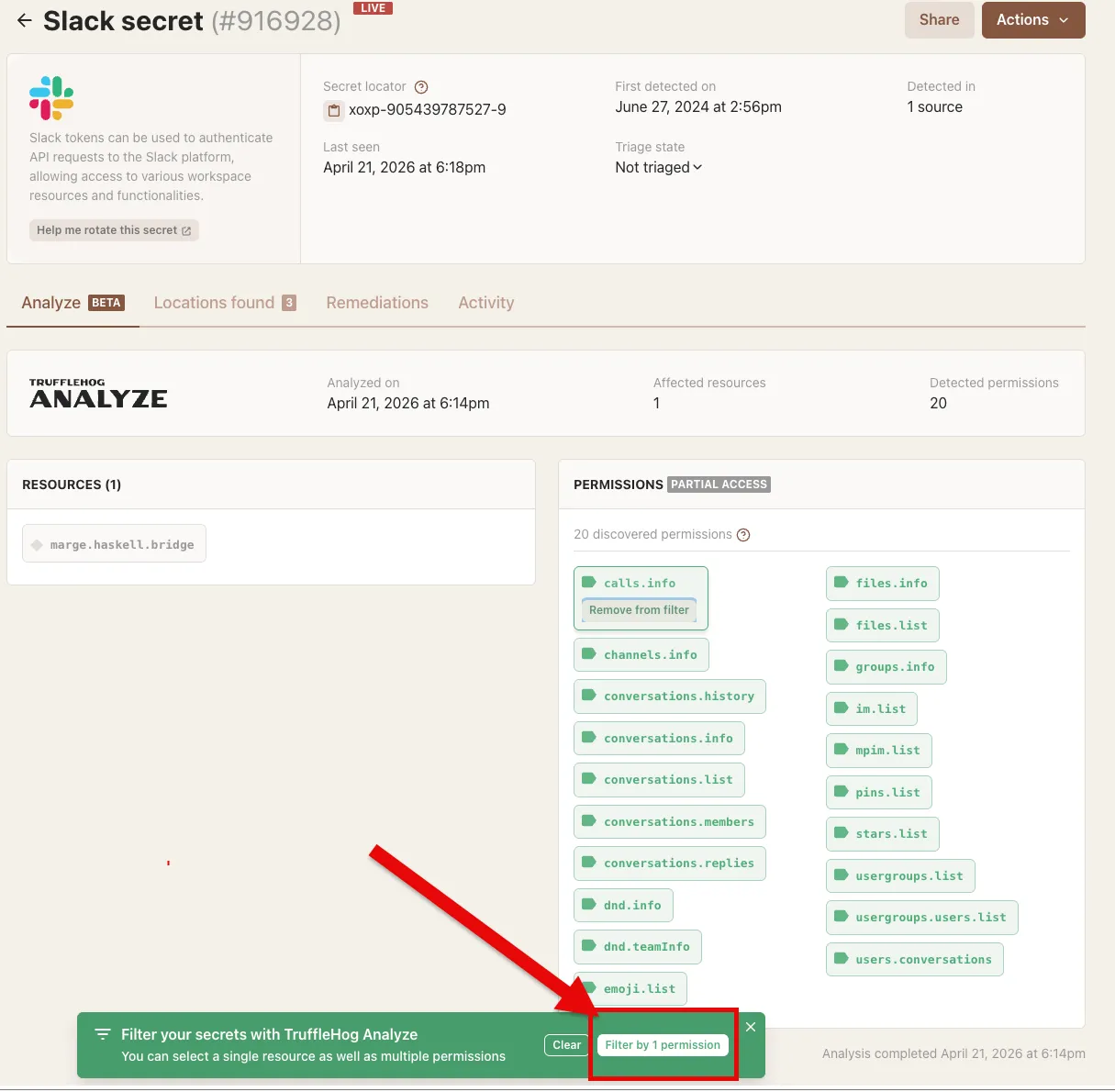
- The Dashboard redirects you back to Secrets and surfaces the TruffleHog Analyze BETA search box to filter.
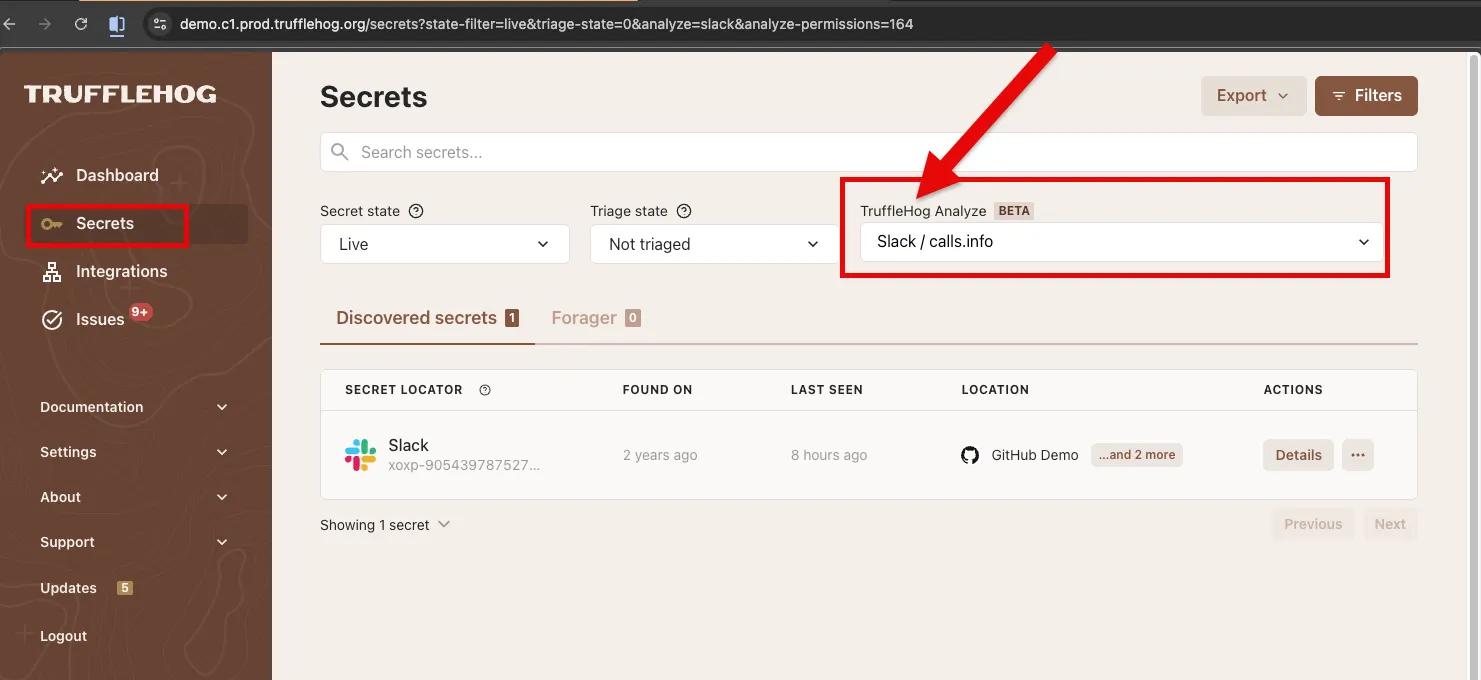
- Filter by ALL to see all exposed live secrets
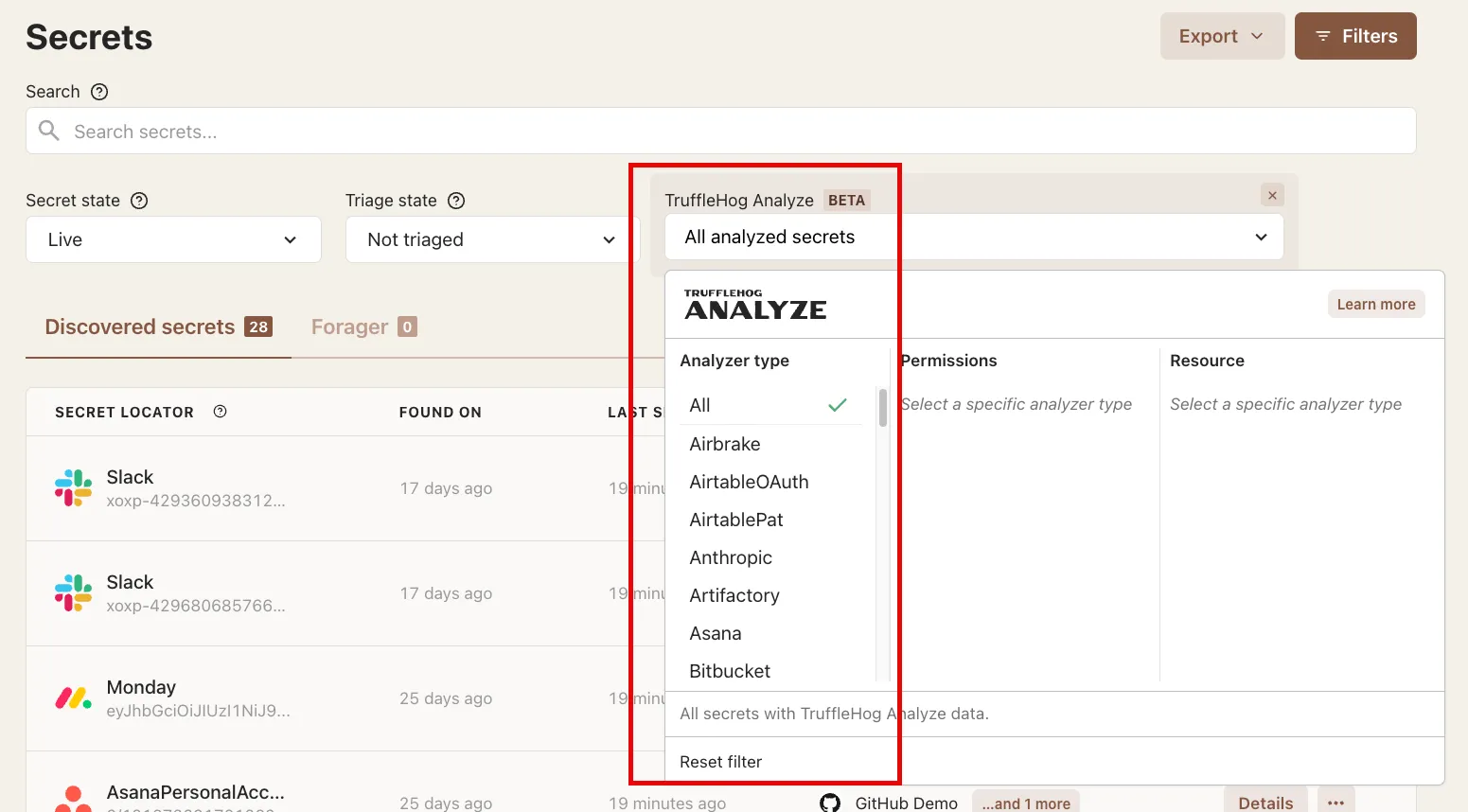
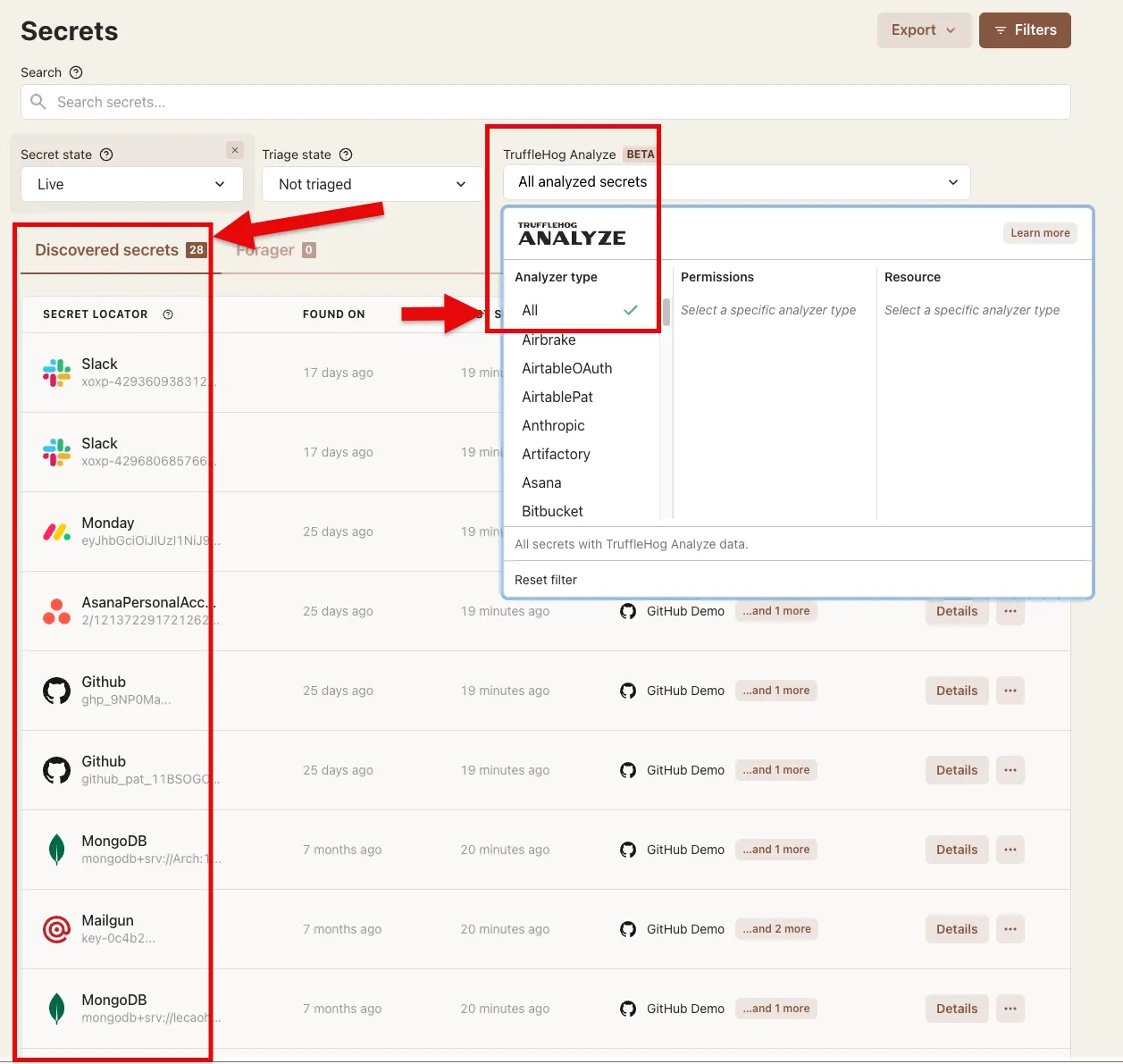
- These are all of the suraced live secrets under Discovered Secrets
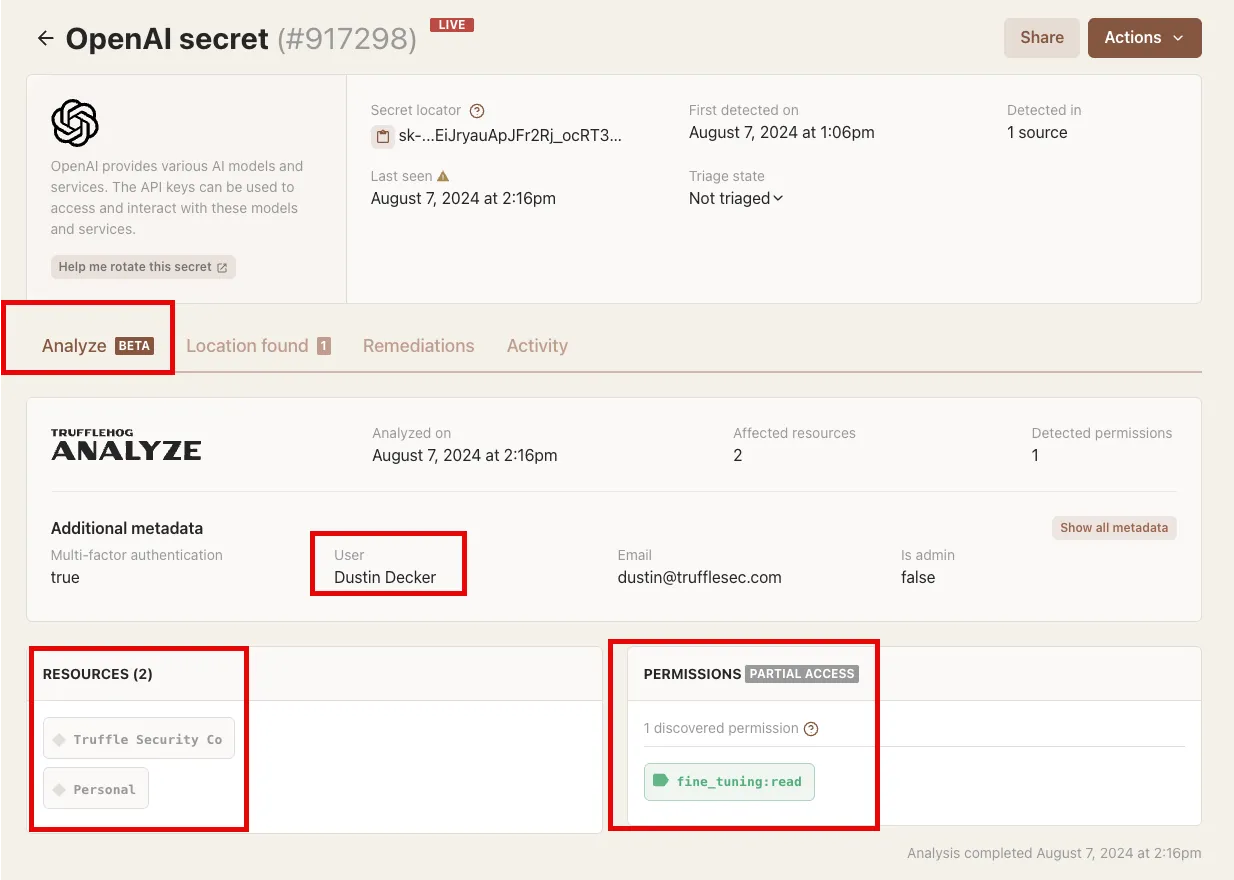
- Click into any of these below under Secret Locator to See their Access Permissions.
- Click Open AI Secret to See Permissions as an example
Forager
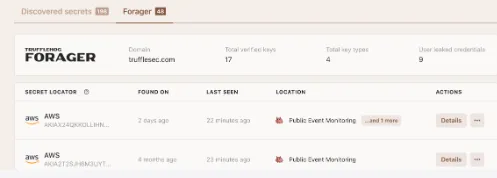
- Forager diligently monitors public commits on Github and package releases on NPM, looking for leaked secrets.
- The "Forager" tab shows the total verified keys, key types and user leaked credentials found across those platforms for a given email domain (ex. trufflesec.com).
More information about Forager is available at the links below: