Google Drive
Google Drive
Edition: Enterprise only
The Google Drive integration scans files and comments in a Google Drive account for credentials and other sensitive data.
Configuration
The Google Drive integration is configured in TruffleHog under Integrations. Local configuration is not available for this source.
Each integration scans a single Google Drive account. To scan multiple accounts, create a separate integration for each one. (Multi-account scanning from a single integration is on the roadmap.)
Web configuration
Configure this integration from the Integrations page in TruffleHog. Click Add integration > Source > Google Drive, then sign in with the Google account you want to scan and grant TruffleHog the https://www.googleapis.com/auth/drive.readonly permission.
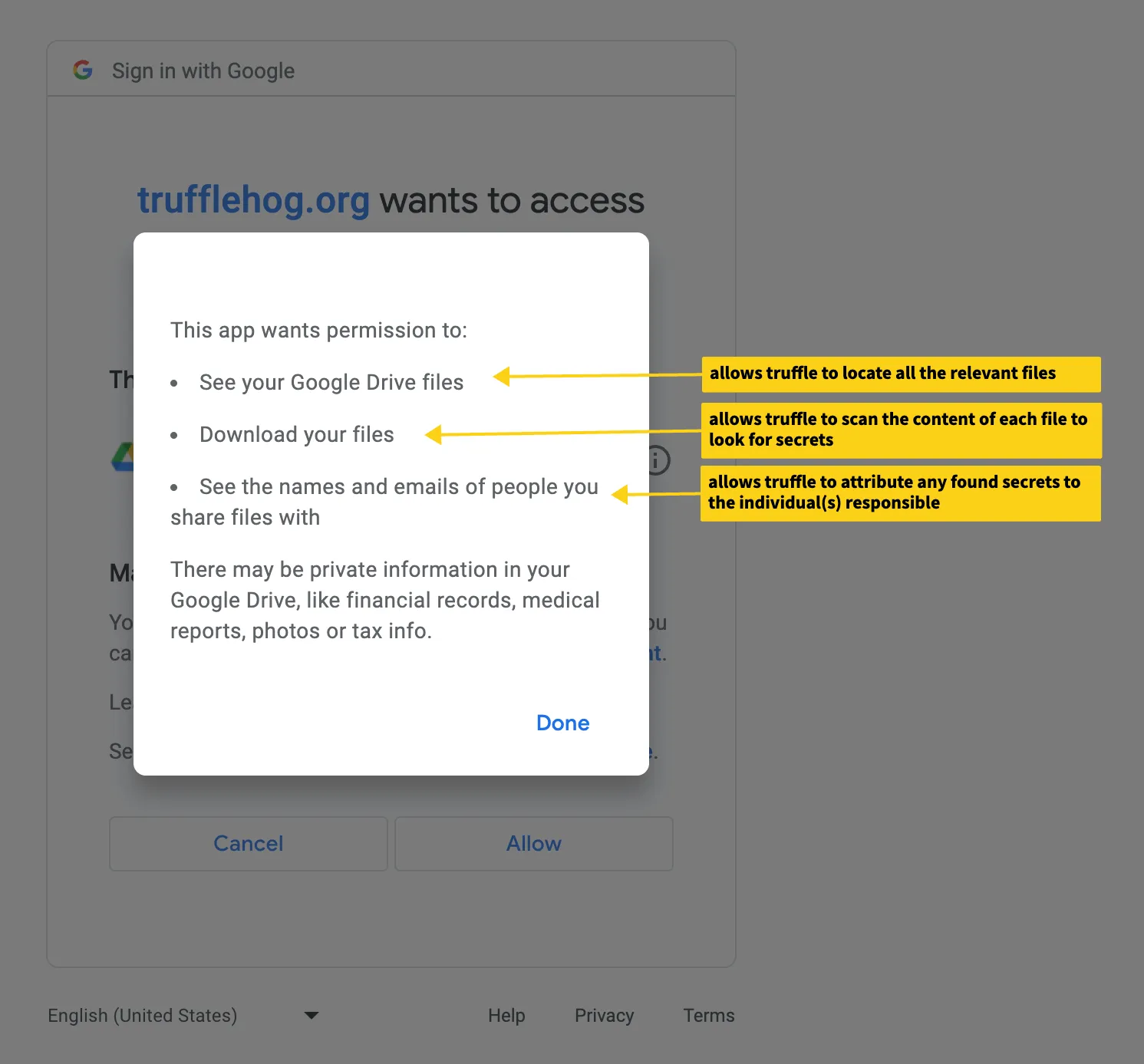
This scope allows TruffleHog to:
- List files available in the Google Drive account.
- Download files for in-memory scanning. No file content is stored.
- See the names and emails of individuals associated with files, used to attribute findings.
The integration scans files accessible to the authorizing account — files owned by the account, plus files shared with the account that have Viewers and commenters can see the option to download, print, and copy enabled (the default).
After granting permissions, you'll return to the configuration screen to name the integration and set the scan interval (12 hours by default).
Unverified app warning
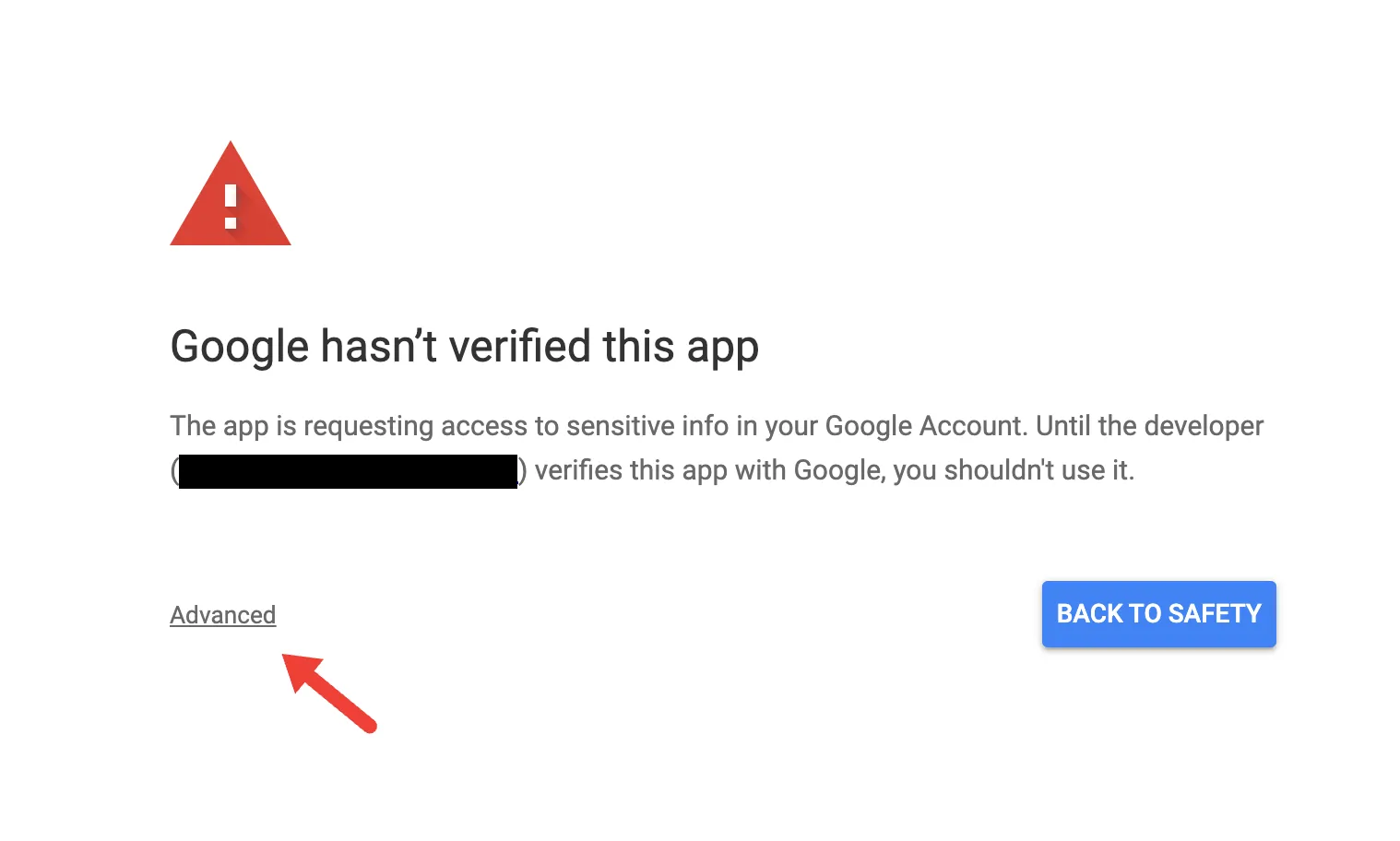
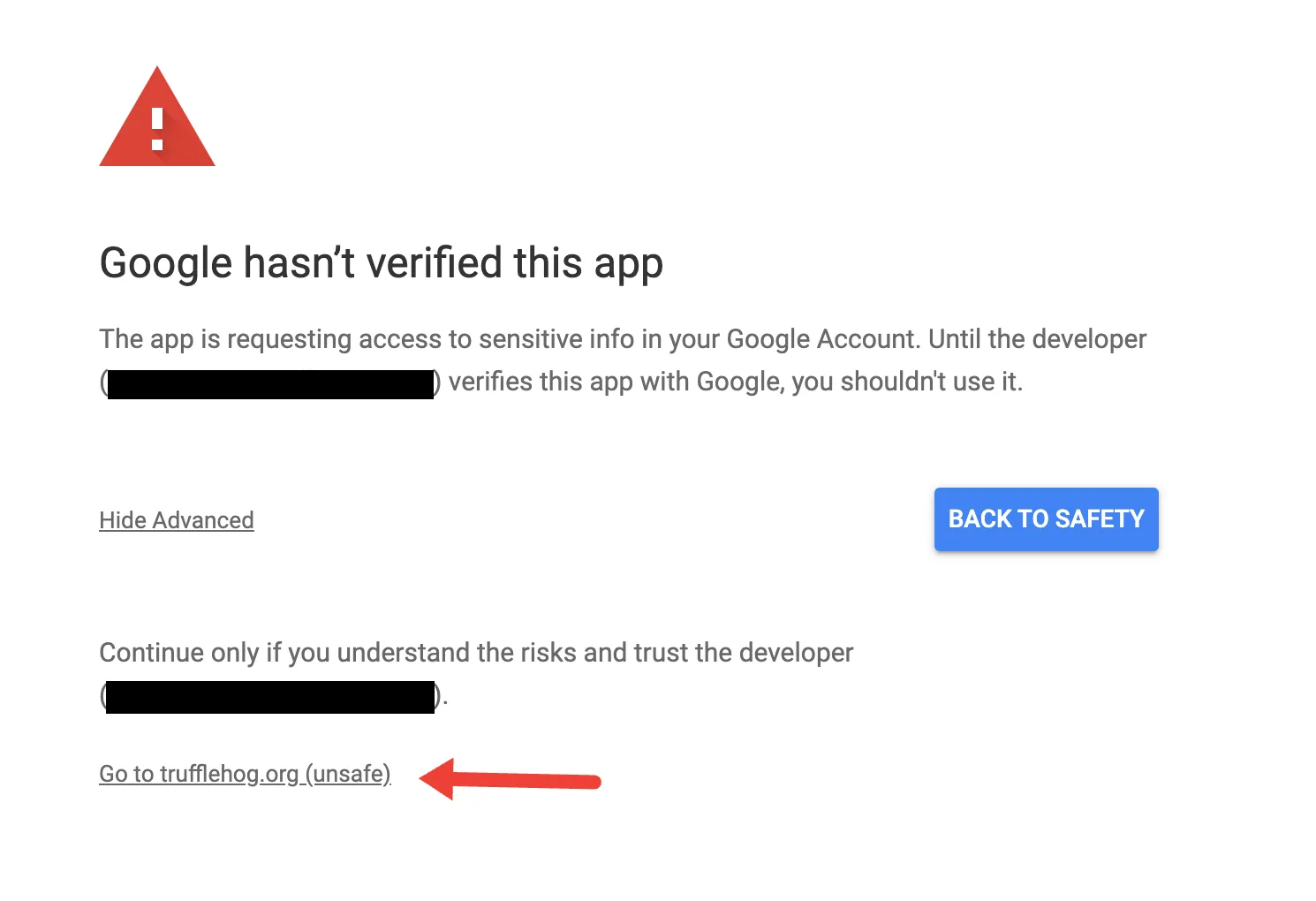
If your Google Workspace administrator has not allowlisted TruffleHog's app, you'll see a "Google hasn't verified this app" screen during sign-in. To proceed, click Advanced > Go to TruffleHog.org (unsafe) and continue to the permissions screen.
If you're an administrator, see Allowlisting the TruffleHog app below to skip this warning for users in your organization.
Allowlisting the TruffleHog app (admin)
Allowlisting is optional but recommended for organization-wide deployments. The user must have run through the unverified-app flow at least once for the app to appear in the admin console.
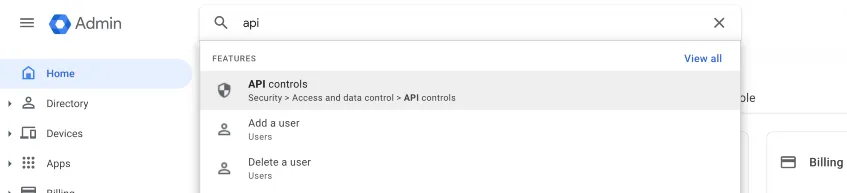
Step 1: Open API controls in the Google Admin Console
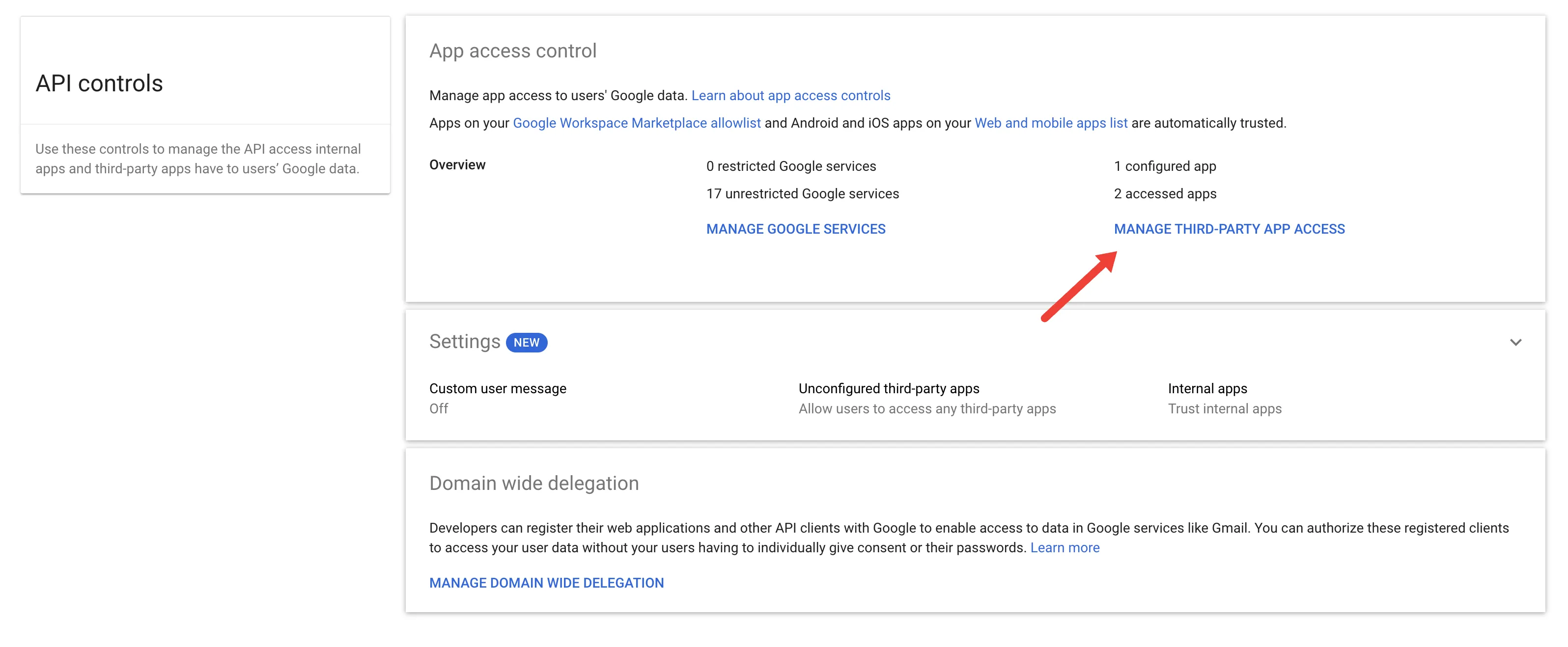
In the Google Admin Console, navigate to Security > Access and data control > API controls.
Step 2: Open third-party app access
Click MANAGE THIRD-PARTY APP ACCESS.
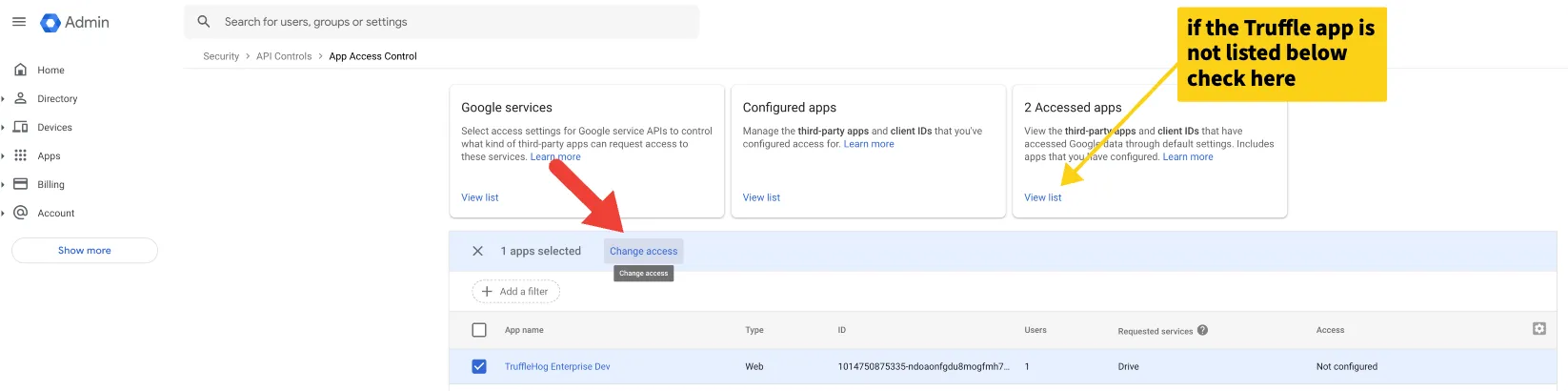
Step 3: Find the TruffleHog app
If the app has been used at least once while unverified, it appears in the list with Access set to Not Configured. If it isn't visible, check View list under Accessed Apps.
Step 4: Change access for the TruffleHog app
Check the box next to the TruffleHog app and click Change access.
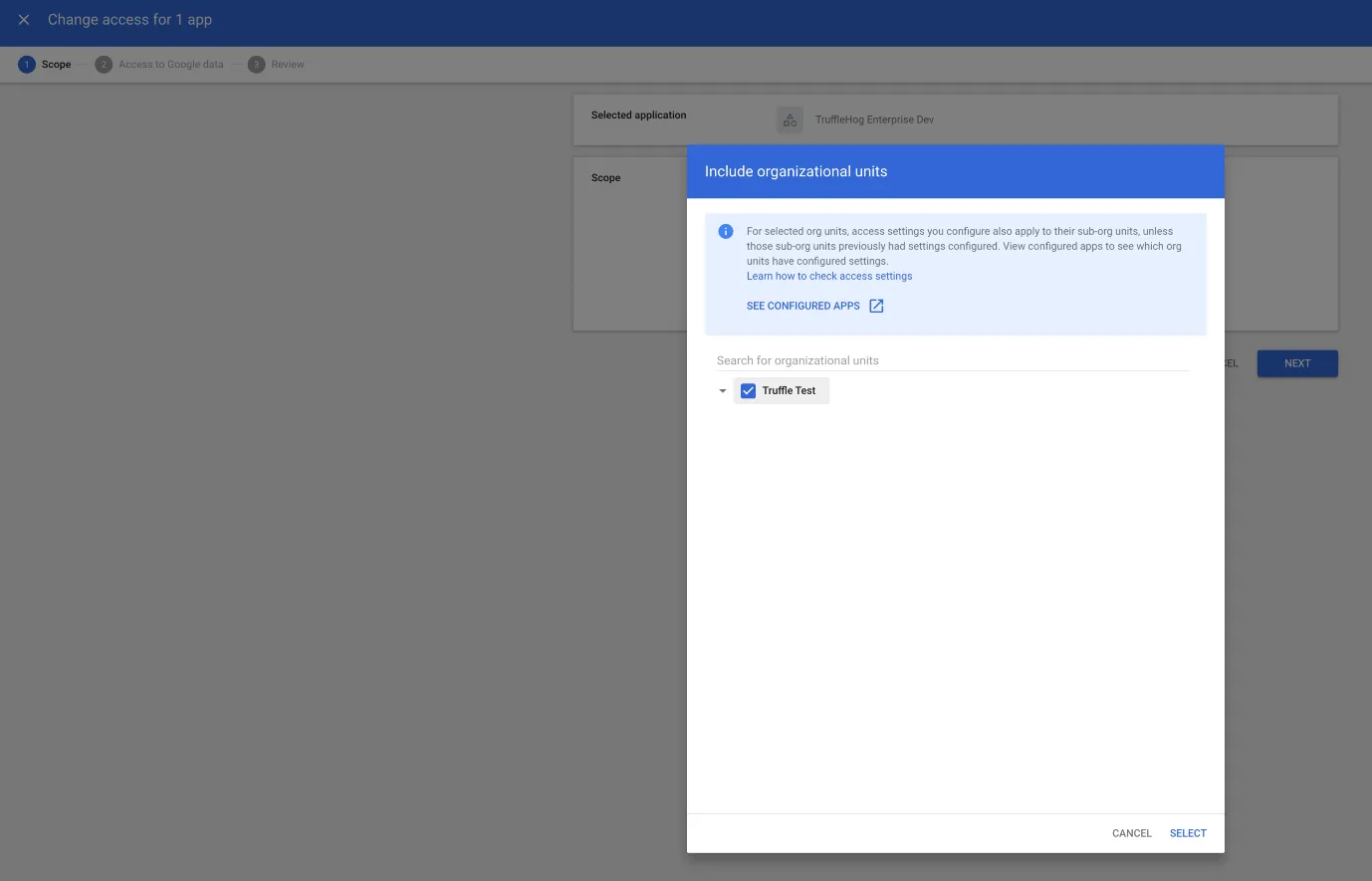
Under Scope, click Include organizational units and select the organizational units you want to allowlist the app for. Click SELECT.
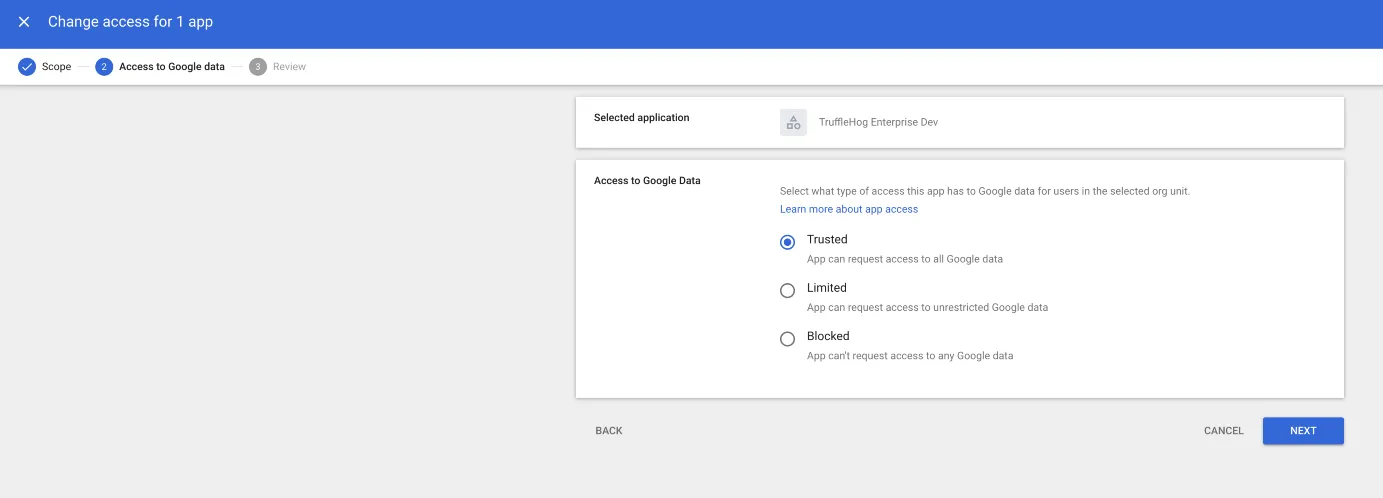
Under Access to Google Data, select Trusted and click NEXT.
Step 5: Confirm the change
Review the changes and click CHANGE ACCESS.
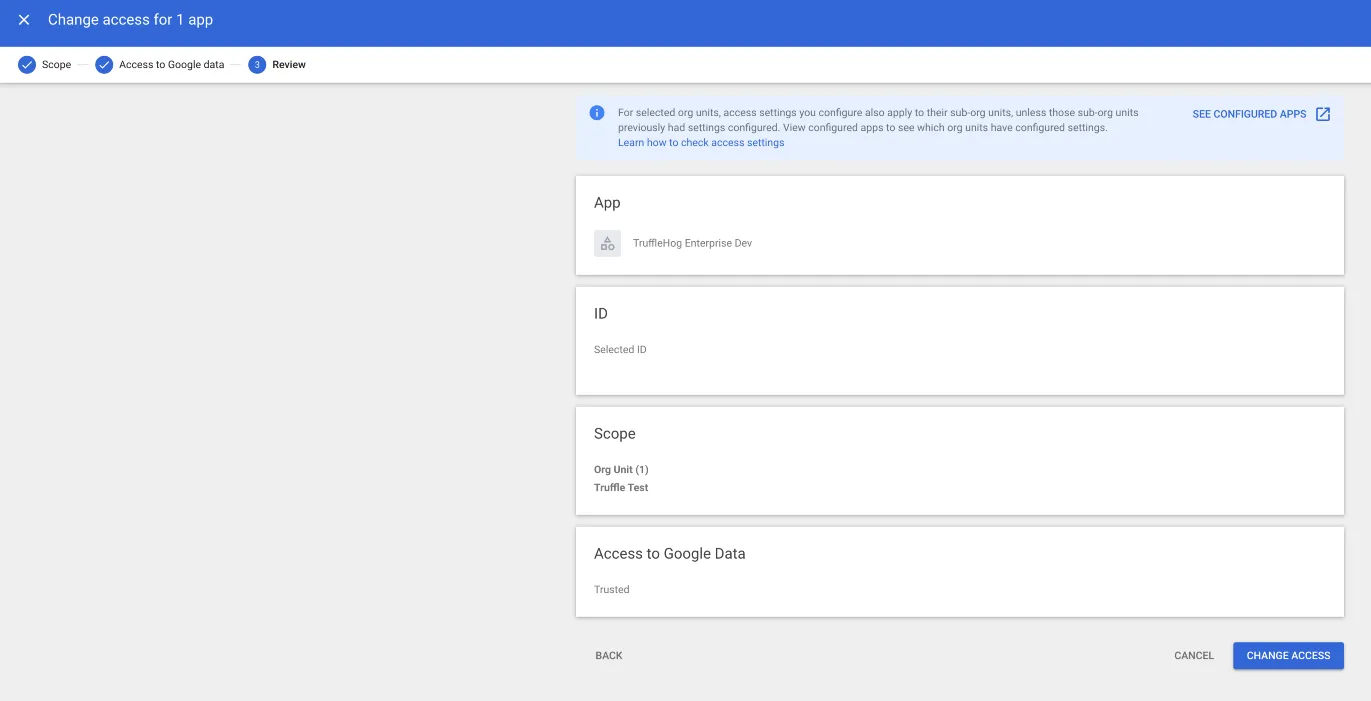
Users in the selected organizational units will no longer see the unverified-app warning when setting up the Google Drive integration.
Capabilities
Feature | Supported |
|---|---|
Scan files | ✅ |
Scan comments | ✅ |
Scan archive files | ✅ |
Scan attachments | ✅ |
Scan base64-encoded data | ✅ |
Scan binaries | ✅ |
Scan Microsoft Office files | ✅ |
Scan files in trash | ✅ |
Auto-resume | ✅ |
Notes
- Files larger than 1 GB are not scanned.
- The integration scans only files the authorizing user has access to, including shared files.
- Drafts are not scanned.
- For organization-wide scanning across multiple users, see Google Drive Domain-Wide Delegation (DWD)Google Drive Domain-Wide Delegation instead.