GitHub
GitHub
Edition: Enterprise + Open Source
The GitHub integration scans repositories, gists, issues, and pull requests on GitHub Cloud or GitHub Enterprise Server for credentials and other sensitive data. For push events as they occur, see the GitHub Real-timeGitHub Real-time source instead.
Configuration Options
The GitHub integration can be configured in TruffleHog under Integrations, or via a local configuration file (below).
Web Configuration
Configure this integration from the Integrations page in TruffleHog. You'll need either:
- A GitHub personal access token (classic), or
- A GitHub App installed on the accounts or organizations you want to scan.
- Once on the Integrations page, click on Add Integration in the top-right corner.
- Click on the Source tile, then click on the GitHub tile.
- You can choose from the following:
- Public and private sources
- Note that the rest of the “Web Configuration” instructions will follow this path
- Public source
- Requires no authentication.
- You can list individual repositories to scan or add organization(s). If adding organizations, then the source integration will scan all discoverable public repositories in those organizations.
- GitHub action
- Links to documentation on how to use TruffleHog within a GitHub action.
- After clicking on Public and private sources, click on Hosted scanner. Doing so will redirect you to a GitHub verification page, or if already signed in, a GitHub App creation page.
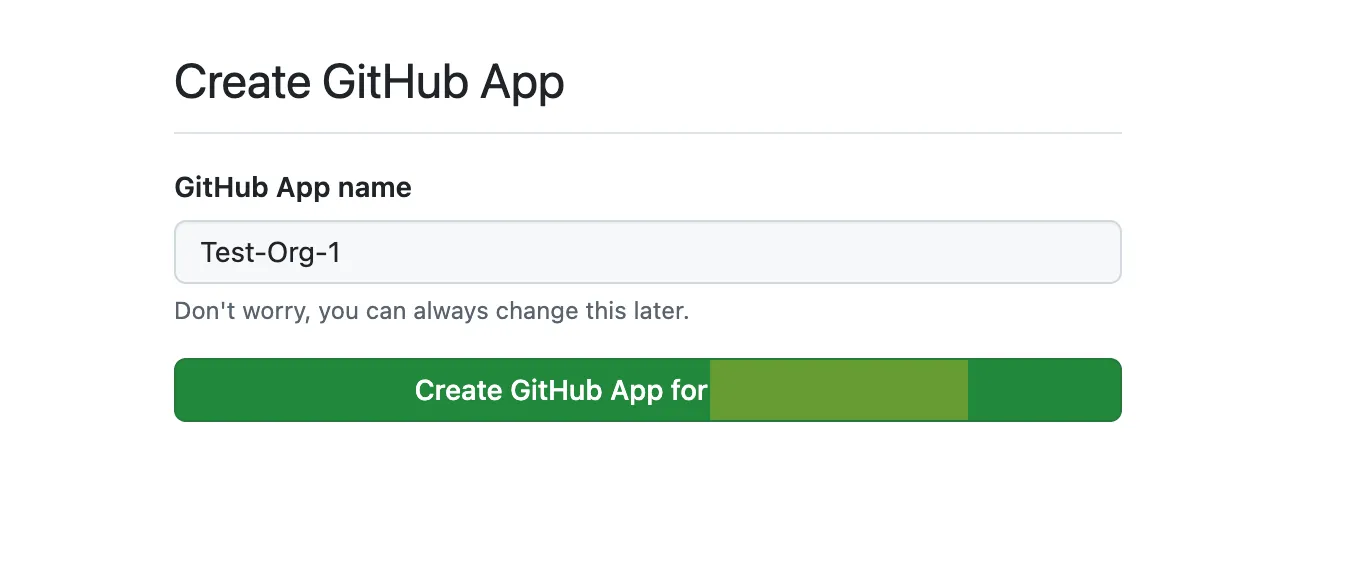
- After GitHub app creation you’ll be redirected back to TruffleHog with this view:
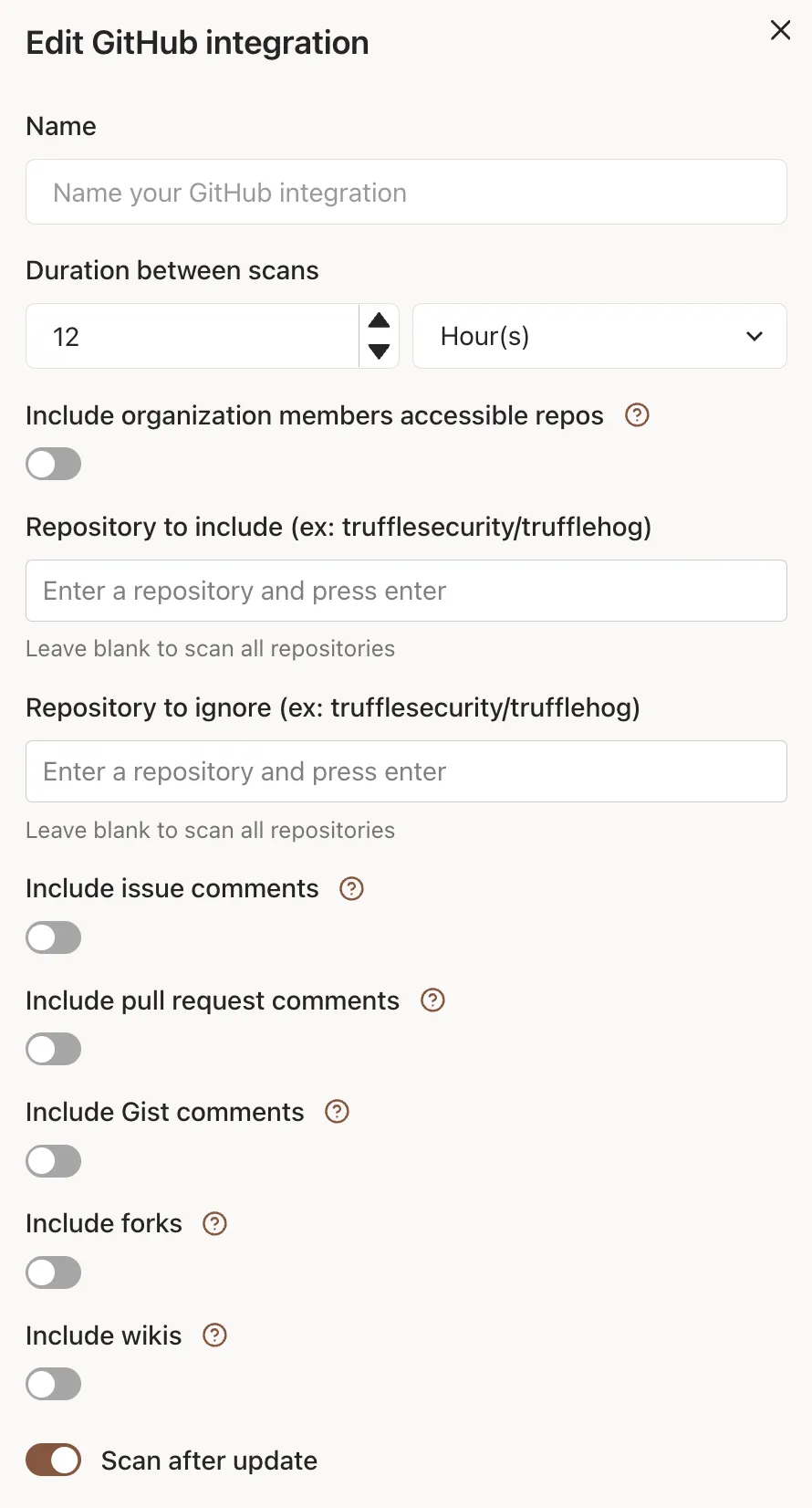
Here you’ll be able to set the duration between scans and decide on the inclusion or exclusion of certain objects in the scan.
Note that if “Repository to include” and “Repository to exclude” are left blank, then TruffleHog will scan whatever the app has access to within GitHub. More information is available in the next step. After making your selections, click “Save”.
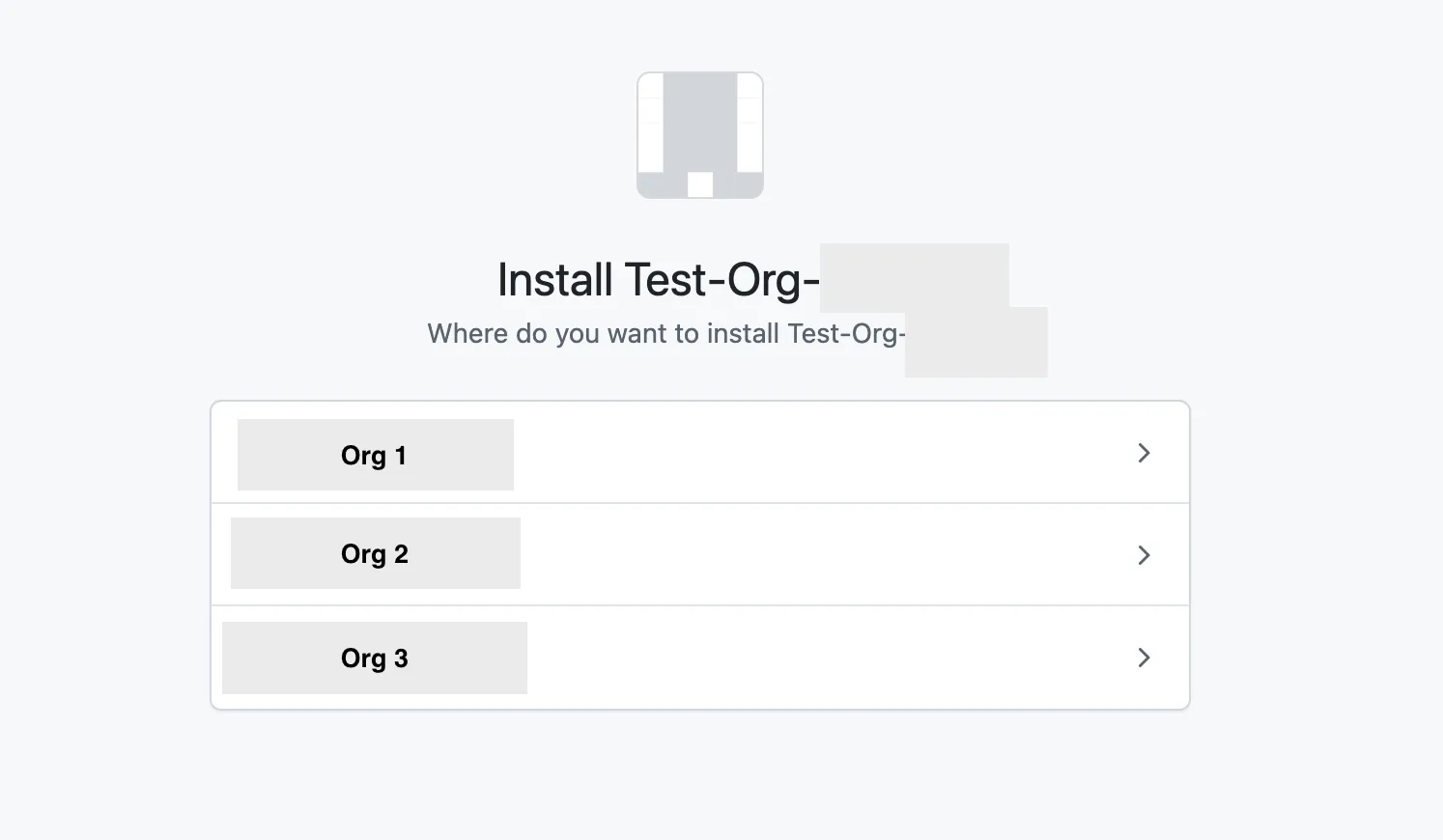
- Clicking “Save” redirects you to the GitHub Organization selection screen. If you have multiple organizations, choose the organization you’d like to add that application to. We will cover installing the app on multiple organizations in the next few steps.
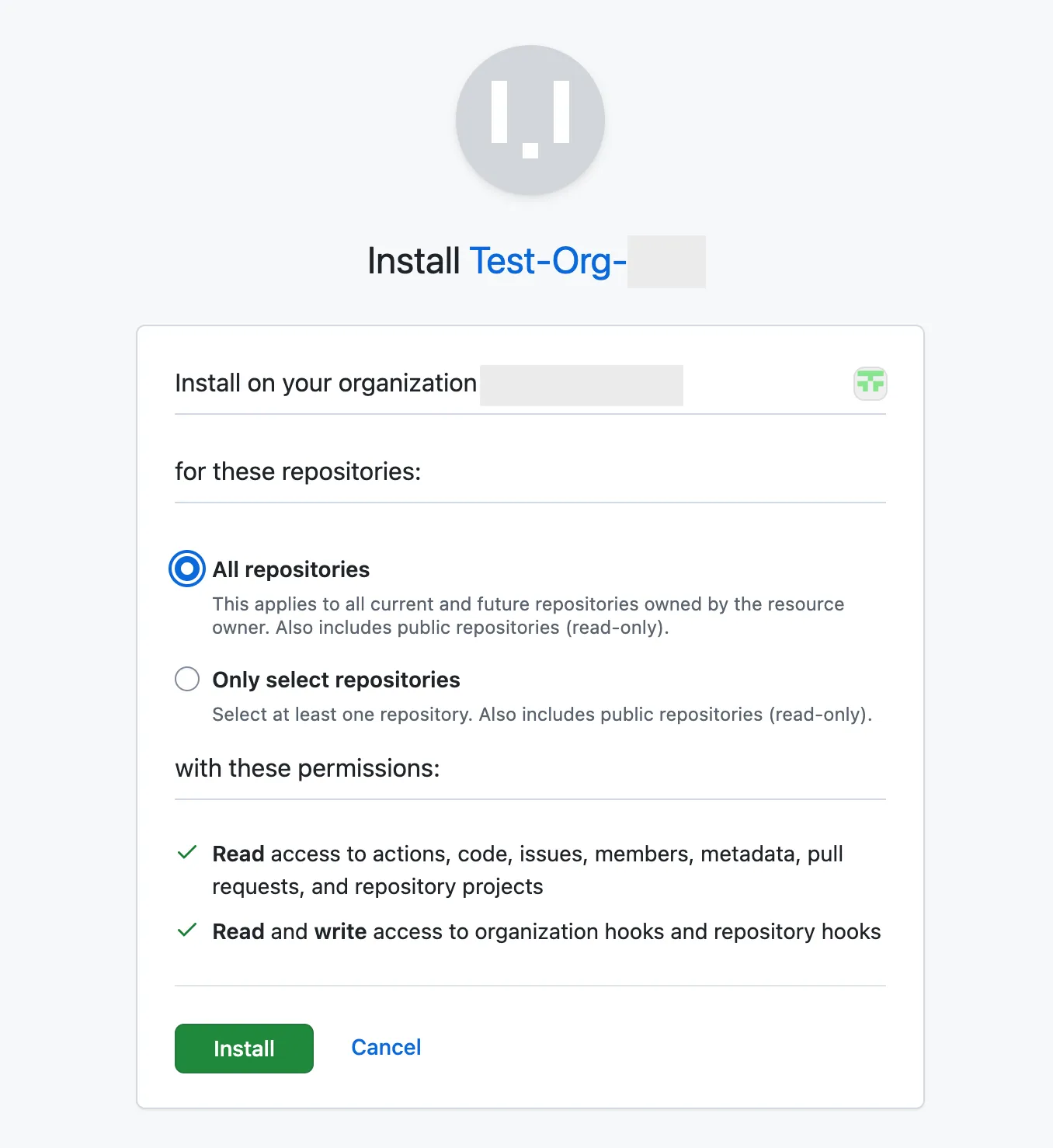
- After choosing your organization choose “All repositories” or “Only select repositories” and then click “Install”.
Local Configuration
Local configuration supports two authentication methods:
- Bearer token — uses a GitHub personal access token (classic).
- GitHub App — uses a registered GitHub App, which can scan repositories across any account or organization where the app is installed.
Bearer token
Create a classic personal access token with the following scopes:
- repo — read access to repository contents.
- gist — read access to gists.
- read:org — read organization membership.
Fine-grained tokens are not supported.
GitHub App
A single GitHub App can scan repositories across multiple accounts or organizations as long as the app is installed on each of them. Each account requires a separate TruffleHog source configuration using the same appId paired with that account's installationId and a unique name.
Setup is a three-step process: register the app, install it, and configure TruffleHog.
Step 1: Register a GitHub App
- Sign in to GitHub and navigate to your account settings.
- For an app owned by a personal account: click your profile photo, then Settings.
- For an app owned by an organization: click your profile photo, then Your organizations, then Settings next to the organization.
- In the left sidebar, click Developer settings.
- Click GitHub Apps, then New GitHub App.
- Fill in the app details: Field Value GitHub App name Any descriptive name (e.g., TruffleHog-scanner-app). Homepage URL Your TruffleHog instance URL: https://<your-org>.c1.prod.trufflehog.org Webhook Leave Active selected. Webhook URL https://<your-org>.c1.prod.trufflehog.org/sources/github/webhook
- Configure the following permissions. If you change permissions after the app is installed, the installation must be re-authorized for changes to take effect. Permission group Permission Access Repository Contents Read-only Repository Metadata (mandatory) Read-only Repository Webhooks Read and write Repository Issues Read-only Repository Pull requests Read-only Organization Members Read-only Account Gists Read-only
- Under Where can this GitHub App be installed?, choose:
- Only on this account to restrict installation to the creating account.
- Any account to allow installation on any user or organization.
- Click Create GitHub App.
- Generate a private key from Settings > Developer settings > GitHub Apps > [your app] > Private keys > Generate a private key. A single private key works across all installations of the app.
- Note the App ID shown on the app's About page — you'll need it for configuration.
Step 2: Install the GitHub App
- From Developer settings > GitHub Apps, select your app.
- In the left panel under General, click Install App.
- Click Install next to the account where you want to install the app.
- Select All repositories, review the permissions, and click Install.
- Find the installation ID by navigating to Settings > Integrations > Applications > Installed GitHub Apps, clicking the gear icon next to your app, and copying the trailing number from the URL: https://github.com/settings/installations/<installationId>.
A new installation ID is generated each time the app is installed on a different account.
Step 3: Configure TruffleHog
To scan additional organizations with the same app, install the same app onto the additional organizations and ensure scanAllInstallations: true is set.
Dependencies (Self-Hosted Deployment Only)
This setup requires specific tools for effective operation. Git is essential for repository management, while rpm2cpio, binutils, and cpio are necessary for extracting files from .rpm and .deb package formats.
- Git: For cloning repositories.
- rpm2cpio: To extract content from RPM packages.
- binutils: Includes the "ar" tool, crucial for extracting contents from .deb files.
- cpio: A versatile file archiver utility, compatible with various archive formats including .rpm and .deb.
Installing Dependencies on Ubuntu
To install these dependencies on an Ubuntu system, follow these steps:
- Open a terminal.
- Update your package lists to ensure you get the latest version available:
$ sudo apt update- Install the required packages:
sudo apt install git rpm2cpio binutils cpioConfiguration options
Field | Type | Required | Description |
|---|---|---|---|
endpoint | string | No | The GitHub API endpoint. Omit for GitHub Cloud. |
repositories | list | No | Explicit list of repositories to scan. Omit to enumerate accessible repositories instead (recommended). |
organizations | list | No | Explicit list of organizations to scan. Omit to enumerate (recommended). |
scanUsers | boolean | No | Enumerate organization members and scan their public repositories. |
includeForks | boolean | No | Include forked repositories. Defaults to false. |
head | string | No | Branch to use as the head when scanning a diff range. |
base | string | No | Branch to use as the base when scanning a diff range. |
ignoreRepos | list | No | Repositories to skip during scanning. |
includeRepos | list | No | Repositories to explicitly include in the scan. |
excludeArchived | boolean | No | Exclude archived repositories from scan. |
includePullRequestComments | boolean | No | Include pull request comments. |
scanAllInstallations | boolean | No | For GitHub apps, this controls whether TruffleHog should enumerate and scan all installations for this app. If false, it will use the given installationID. |
includeIssueComments | boolean | No | Include issue comments. |
ignoreGists | boolean | No | Skip gist scanning entirely. |
includeGistComments | boolean | No | Include gist comments. |
skipBinaries | boolean | No | Skip binary files. |
skipArchives | boolean | No | Skip archive files. |
includeWikis | boolean | No | Include repository wikis. |
clonePath | string | No | Directory on the scanner where repositories are cloned. Defaults to /tmp |
Capabilities
Feature | Supported |
|---|---|
Scan archive files | ✅ |
Scan archived repositories | ✅ |
Scan base64-encoded data | ✅ |
Scan binaries | ✅ |
Scan comments (issues, PRs, gists) | ✅ |
Scan gists | ✅ |
Scan forks | ✅ |
Scan history | ✅ |
Scan version history | ✅ |
Scan in CI | ✅ |
Include / exclude filters | ✅ |
Pre-commit | ✅ |
Pre-receive | ✅ |
Auto-resume | ✅ |
Notes
- TruffleHog does not scan diffs larger than 1 GB.
- Scanning in GitHub Actions is supported but requires additional setup.
- Personal access tokens must be classic tokens. Fine-grained tokens are not supported.
- For real-time scanning of push events, use the GitHub Real-timeGitHub Real-time integration.
- Default gist scanning behavior: Gists are scanned by default unless any of the following is true:
- ignoreGists is true.
- repositories is set (an explicit repo list overrides default gist enumeration).
- organizations is set and scanUsers is false.