Authentication
8 min
Default
The default authentication method for TruffleHog uses Google Oauth or Magic Links for user management.
Each user must be added by email on the Users page by an administrator before they can log in. This applies when Require SSO login with automatic role mapping is disabled.
SSO Authentication
To use JIT (Just-in-Time) provisioning, which automatically creates user accounts upon first login, you must enable Require SSO with Automatic role mapping.
Note: This does not require a user account be created on the TruffleHog instance first.

SAML SSO
Authentication can be configured to be handled by a SAML SSO identity provider (IdP). When this option is enabled, the IdP is responsible for user management.
Okta Configuration
- Select “Create a new app integration”
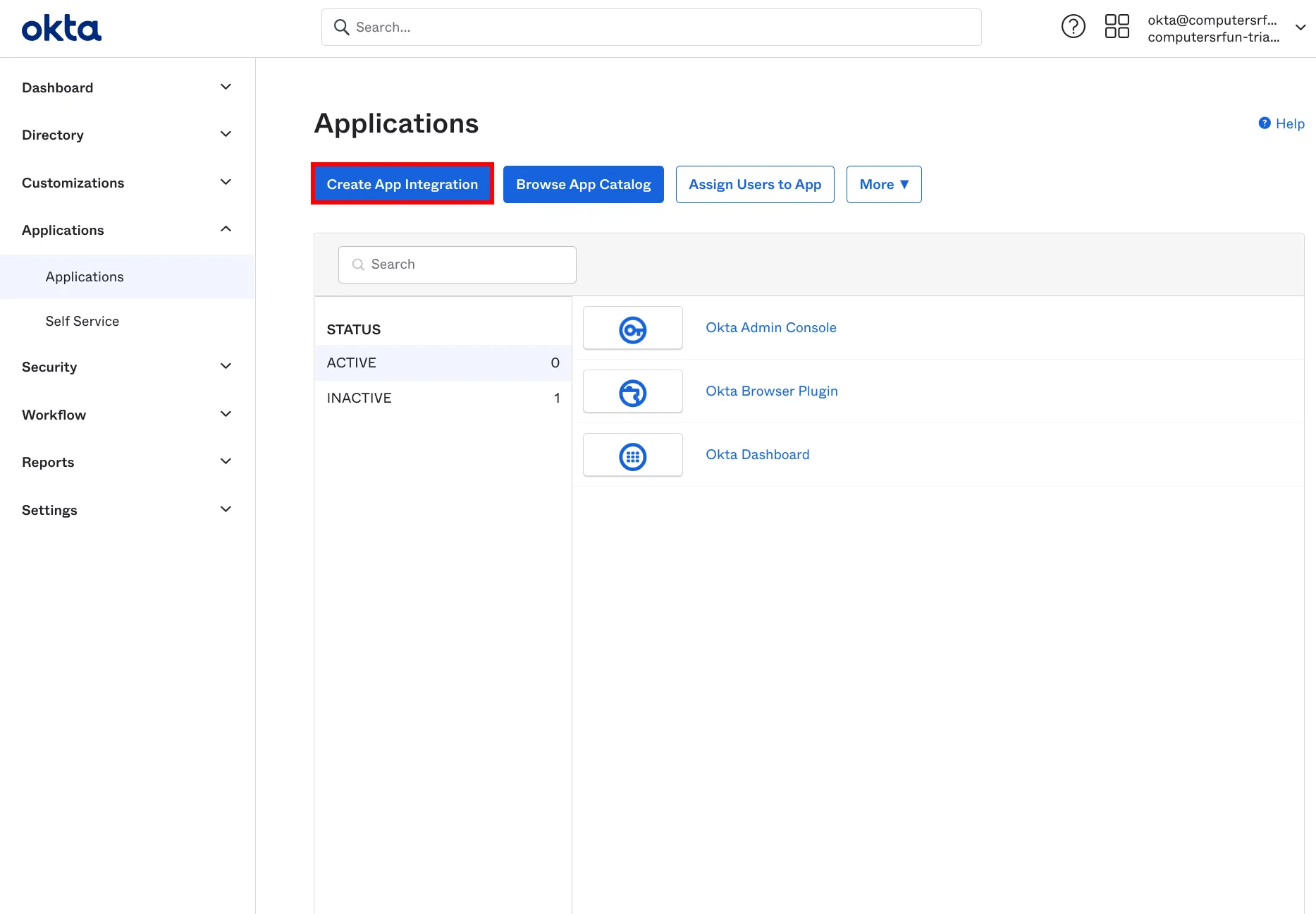
Adding new app integration
- Select a “SAML 2.0” app
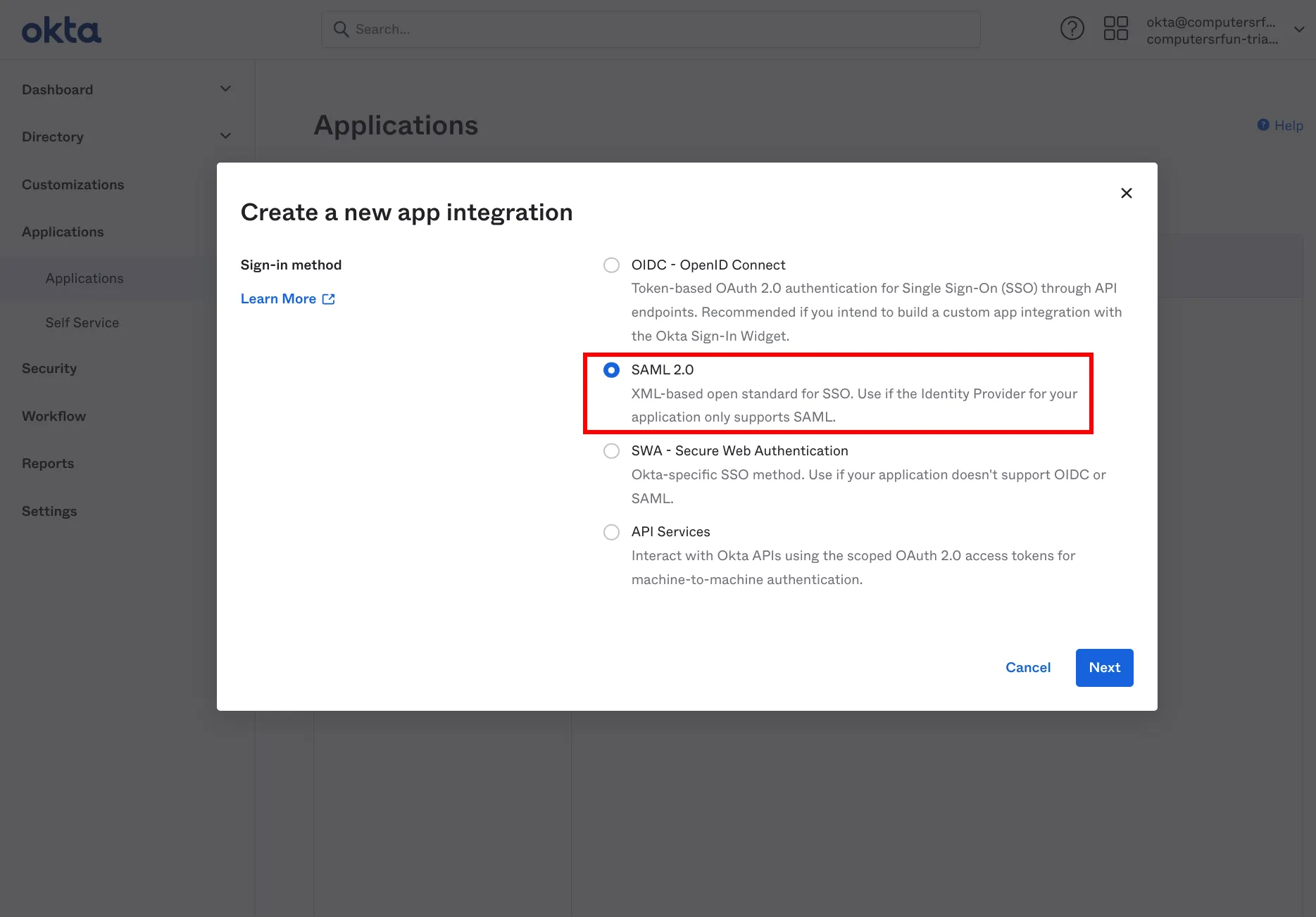
Select SAML 2.0 app
- Set your app name and app logo
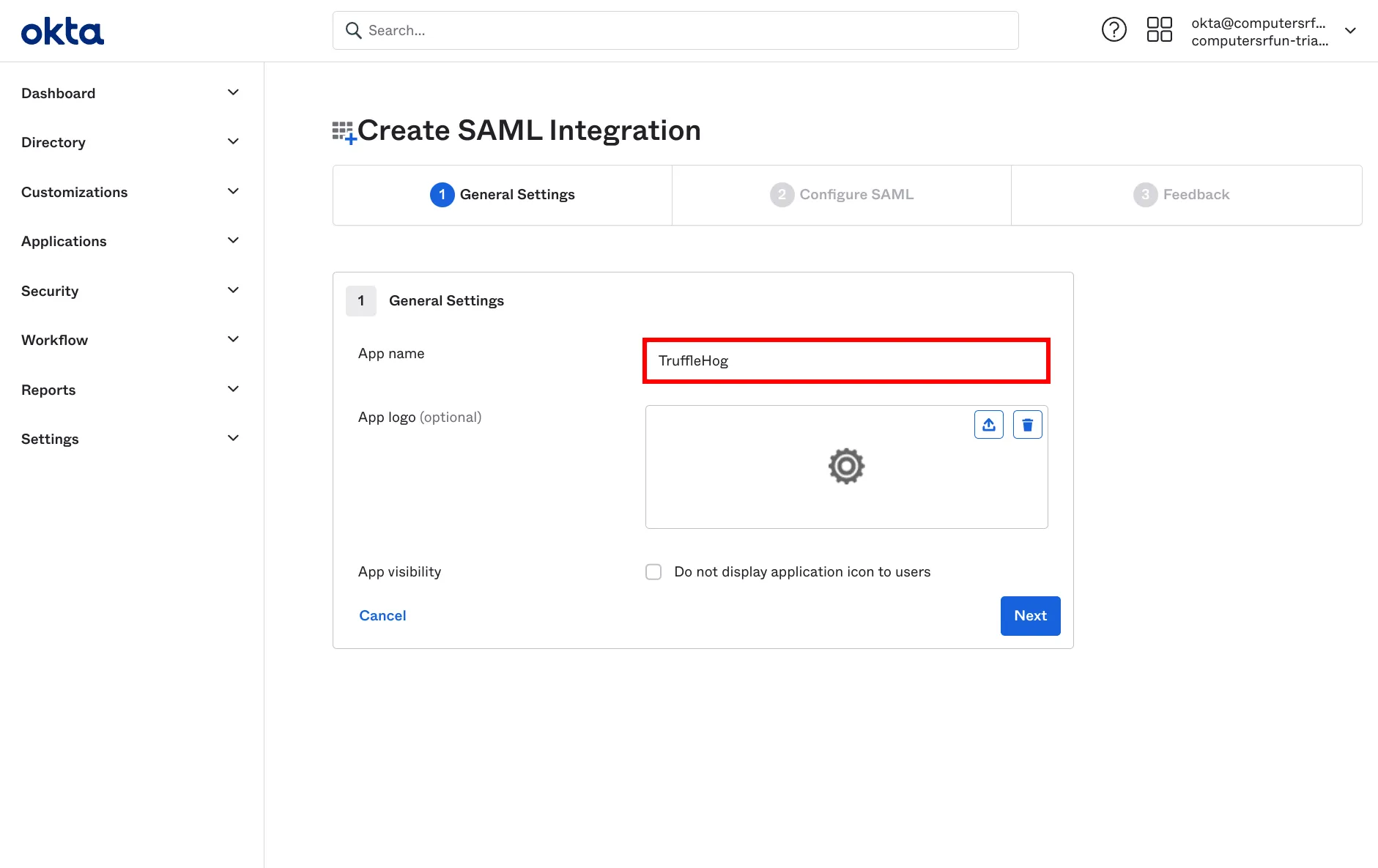
Define the app tile
- Single Sign on URL → See Authentication page in TruffleHog dashboard
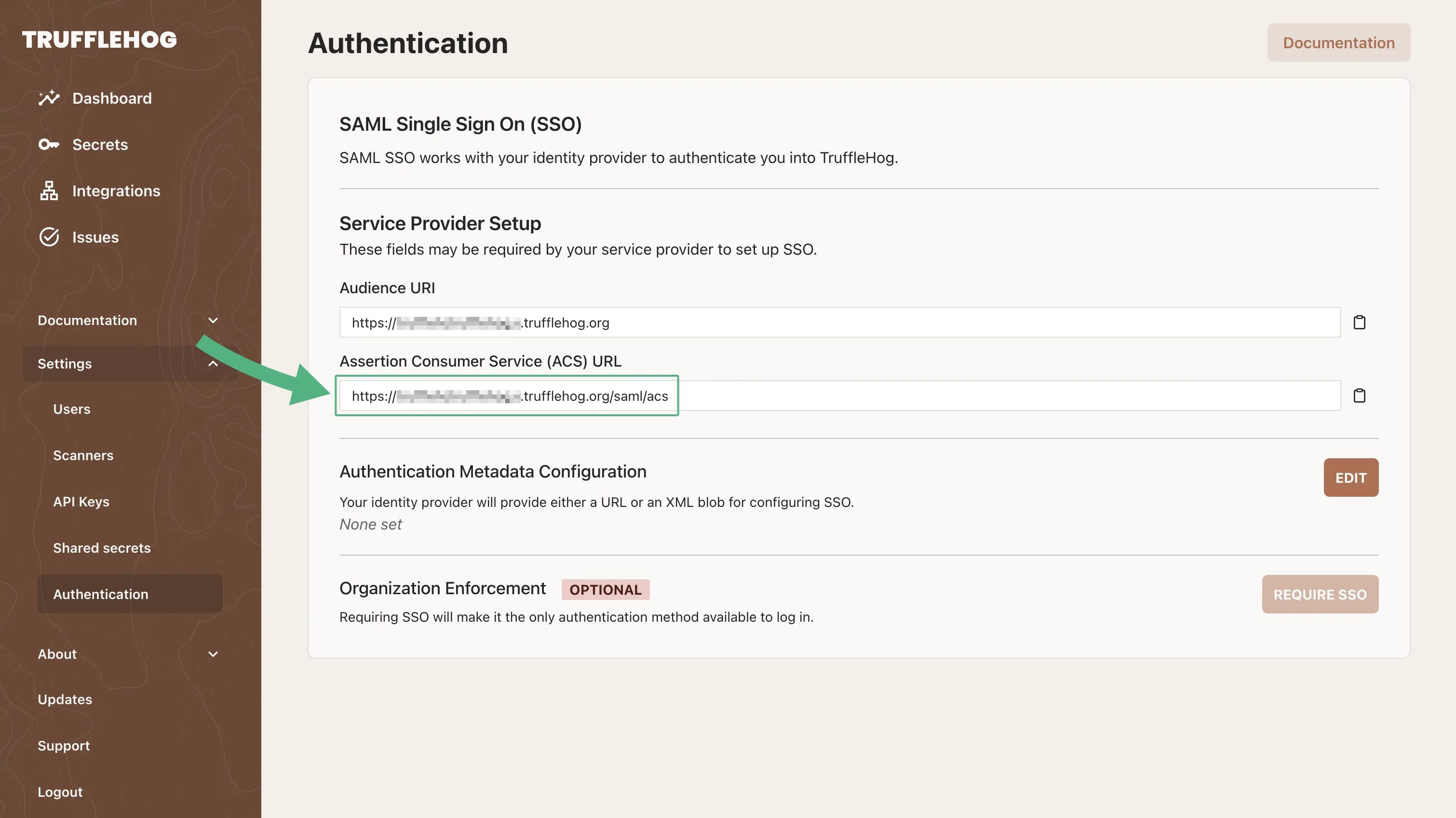
Copy the ACS URL
- Single sign on URL → See Assertion Consumer Service (ACS) URL on Authentication page under Settings.
- Audience URI → Base URL for your TruffleHog deployment. For example, if your ACS URL is https://sample-instance.trufflehog.org/saml/acs, your Audience URI will be https://sample-instance.trufflehog.org
- Name ID Format → EmailAddress
- Add the following Attribute Statements
- email → user.email
- firstName → user.firstName
- lastName → user.lastName
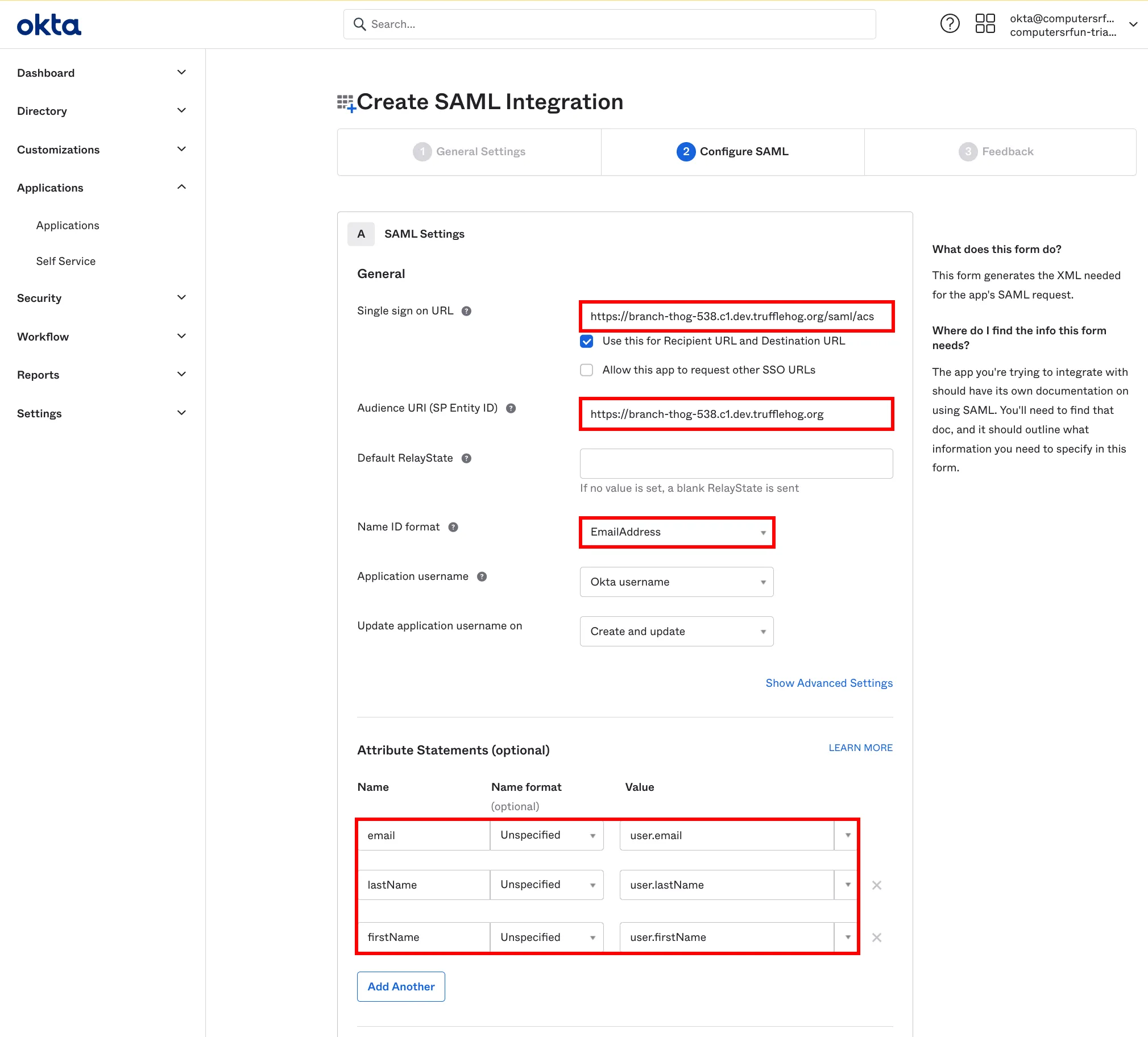
Fill in the required fields
- Complete setup
- Go to the new app admin page
- Go to Sign On tab
- Open “View SAML setup instructions”
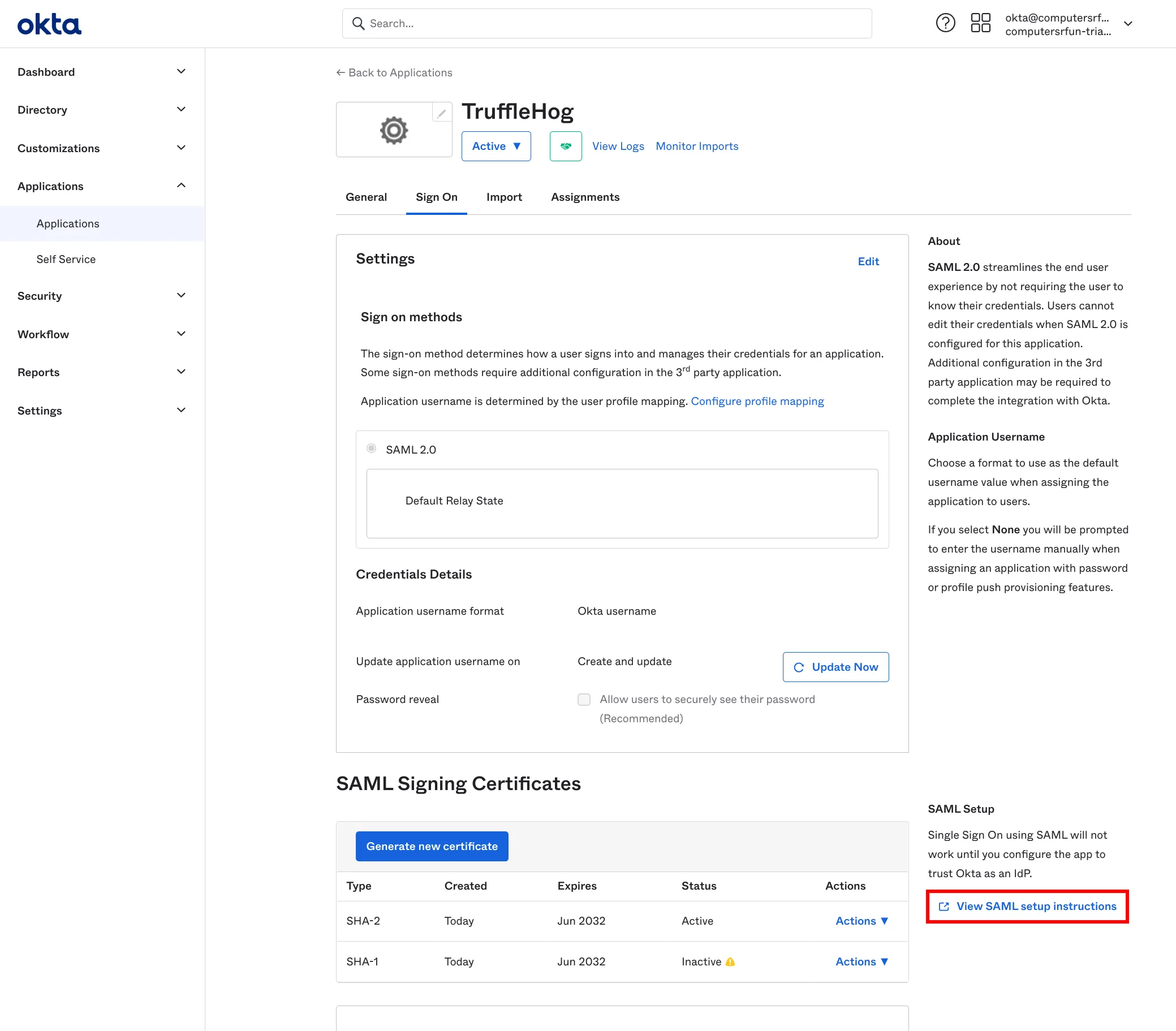
Find the SAML setup instructions
- Select the IDP metadata from the text box
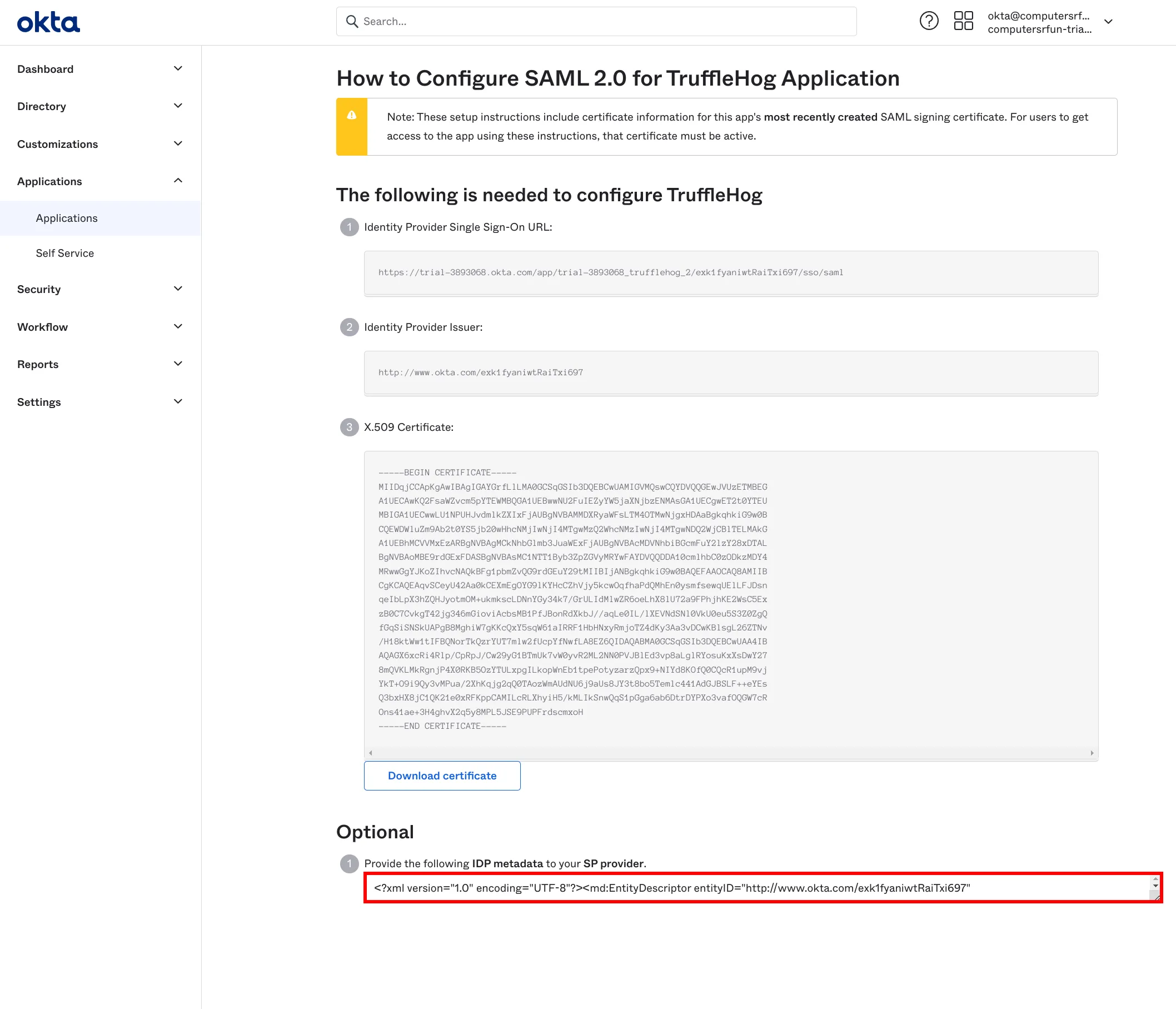
Copy the IDP metadata URL
- Paste the metadata content into the metadata field on the TruffleHog authentication configuration page
Azure Configuration
- Go to Enterprise Applications, and select "New Application"
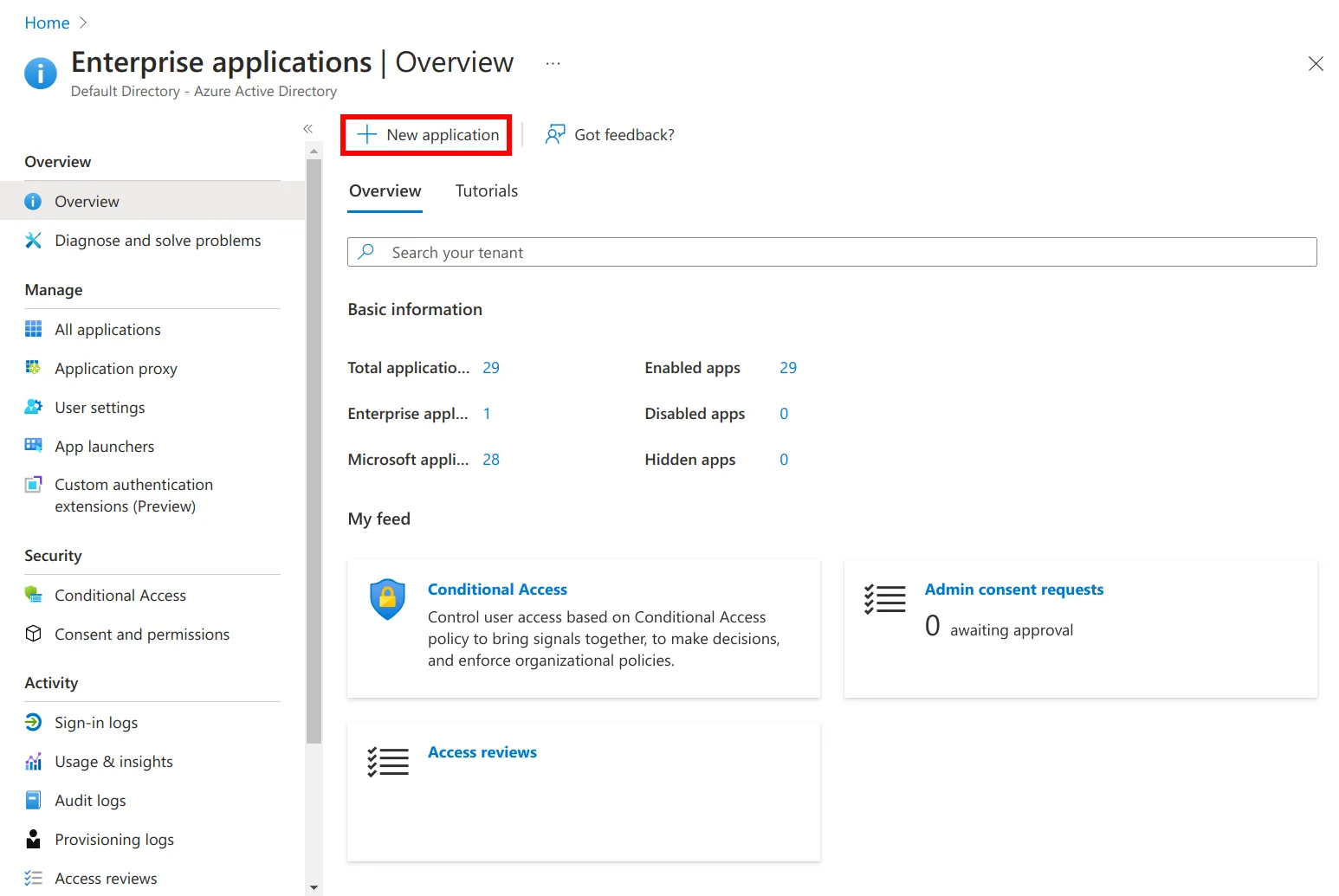
Create a new application
- Select "Create your own application"
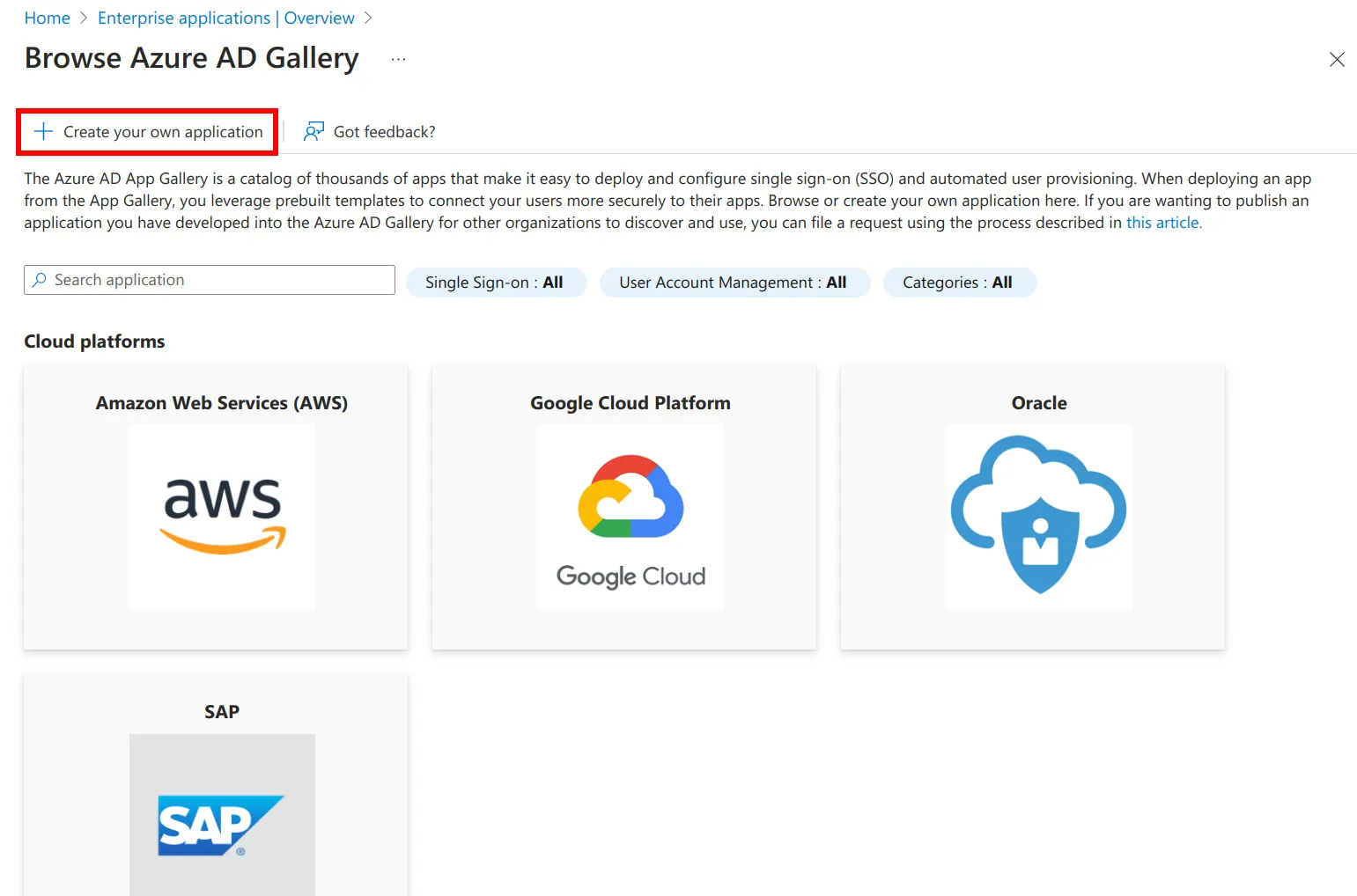
Select Create your own application
- Enter the name of your application, and click Create
- Go to Single sign-on, and select SAML
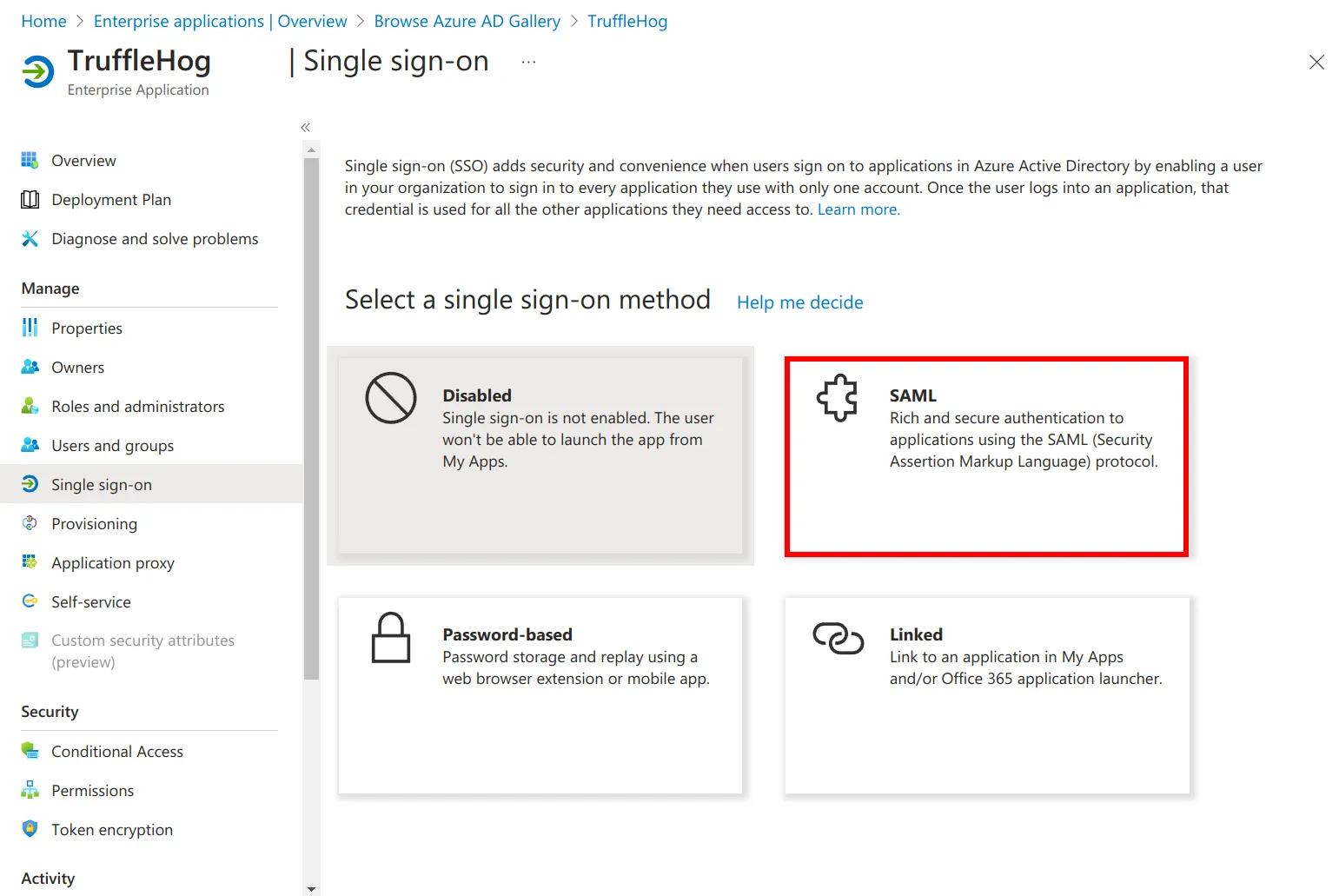
Select SAML method
- Edit Basic SAML Configuration
- Set Identifier to Audience URI from TruffleHog Authentication Page
- Set Reply URL to ACS URL from TruffleHog Authentication Page
- Save
- Go back to Single sign-on, and copy the App Federation Metadata Url and paste the Metadata URL in TruffleHog Authentication Page
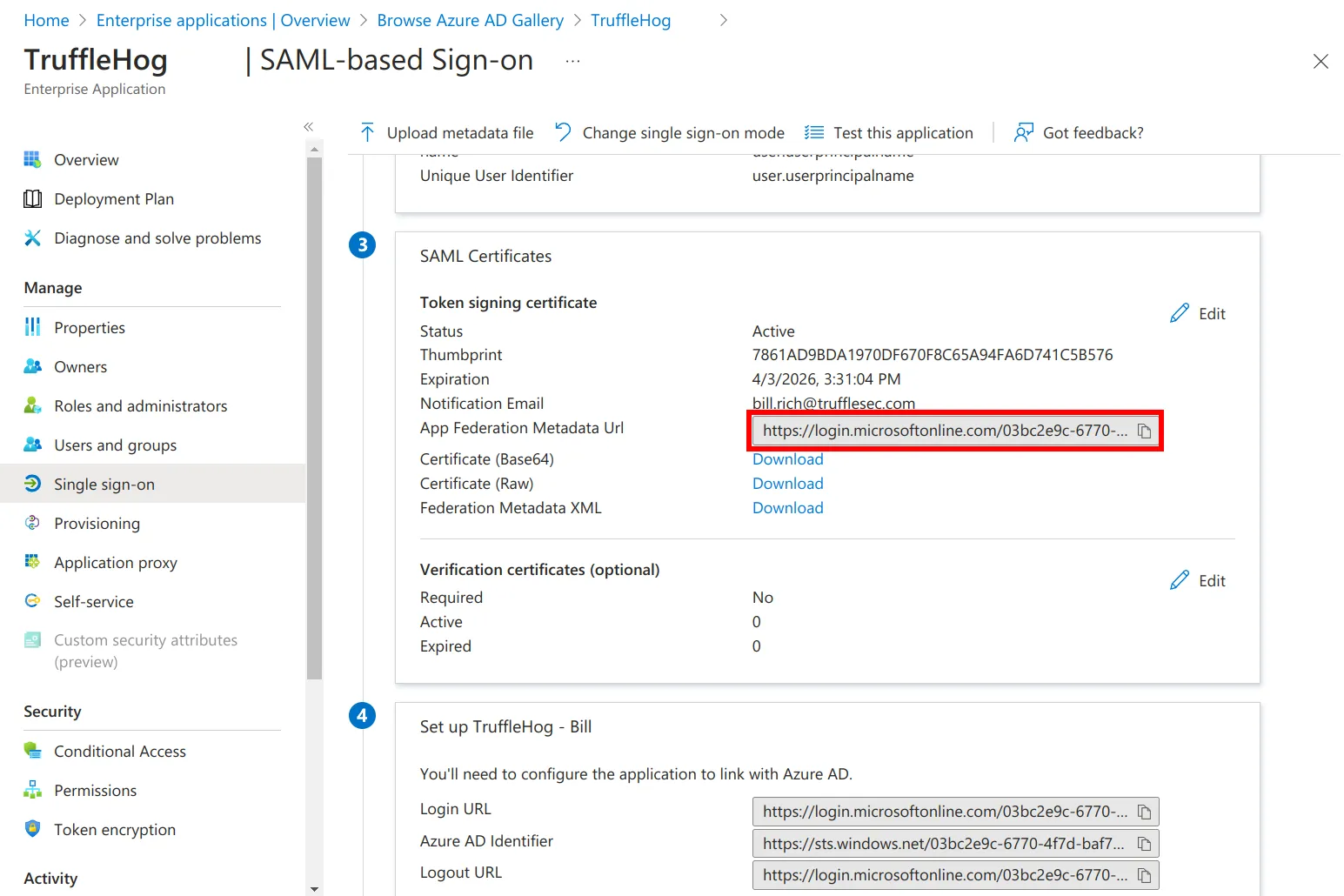
Copy the metadata URL
- Edit Attributes & Claims and add the following:
- username: user.mail
- email: user.mail
- firstName: user.givenName
- lastName: user.surname
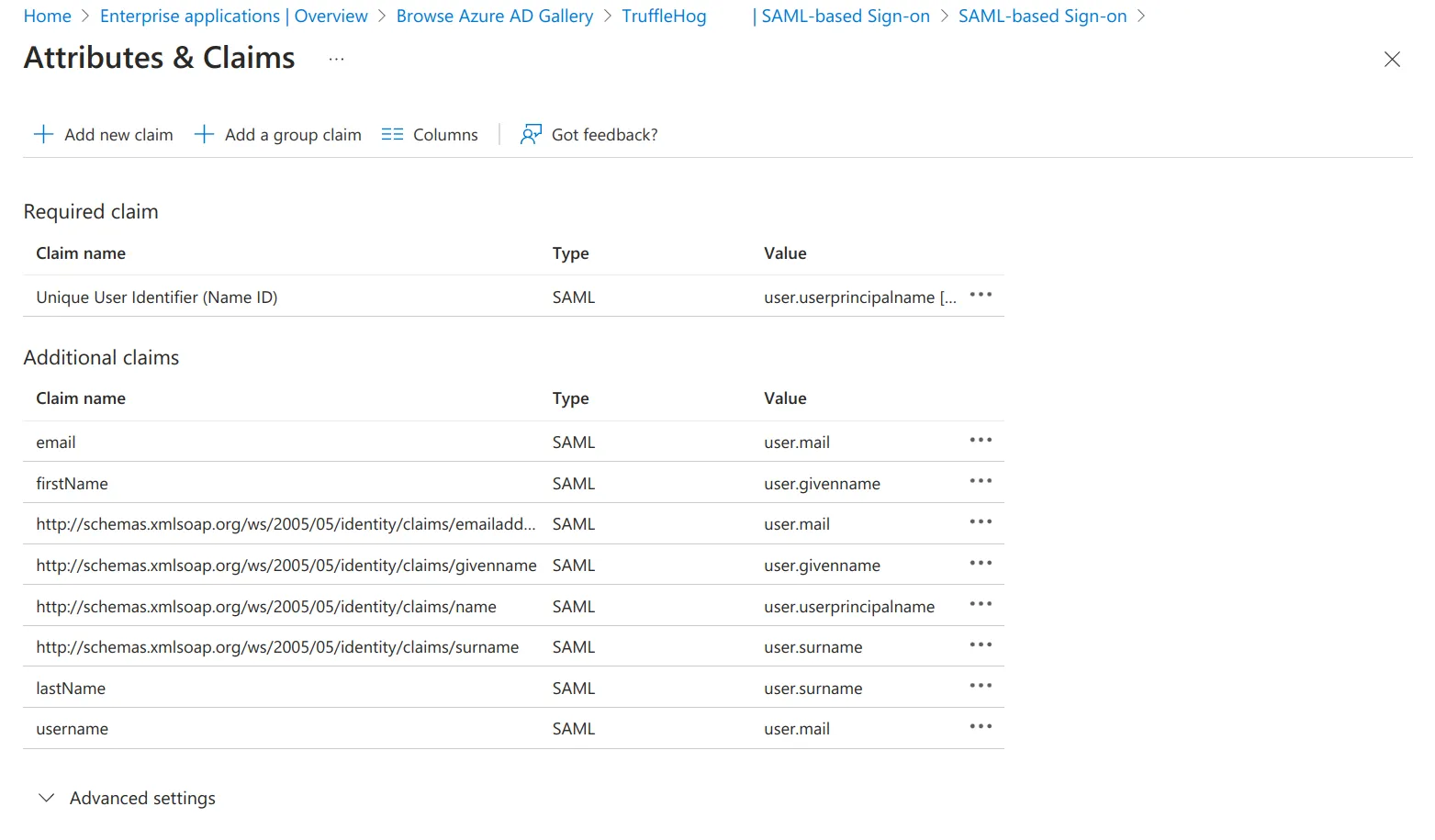
Define the attributes and claims
- Add users or groups to your application
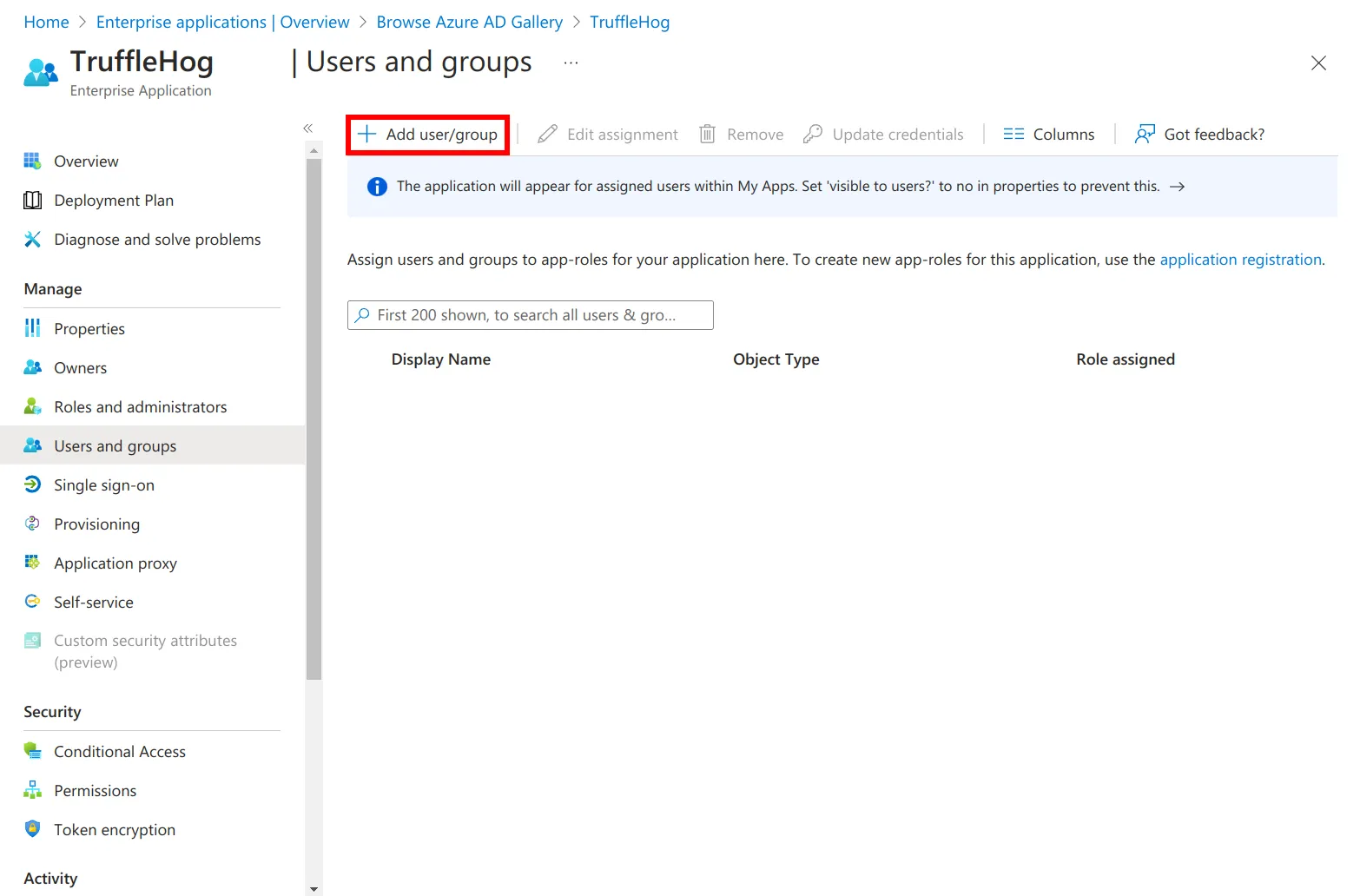
Add users or groups
Additional Notes
- If you are using an IdP that uses a subject that is unique for each session, add a 'username' attribute/claim that returns the user's email address.
- TruffleHog's Service Provider metadata endpoint can be found at /saml/metadata for your deployed instance. For example, if your instance is https://sample-instance.trufflehog.org, the Service Provider metadata endpoint is https://sample-instance.trufflehog.org/saml/metadata.
- You can use Dynamic Role-Based Access Control (RBAC) to control JIT provisioning based on a user's group membership or other attributes sent by the IdP.